
I have created a custom entity named “Country” and want to set an image for it.
Follow the below steps to do the same.
Step 1: Open CRM. Goto Settings -> Customizations -> Customize the System -> Entity.
Step 2: Create an Image Data Type Field in the Country Entity as shown below.

Step 3: Open the Country Entity Main Form.

Step 4: Click on Form Properties and click on Display Tab.
Select the Show image in the form to opt the feature.

Step 5: Save and Publish the Entity.
Step 6: Open any existing record or create a new Country record. Click on the Default Image on the record to upload the Image.
Browse for the required file and click on OK.

Step 7: Image will be updated automatically and shown in the record.
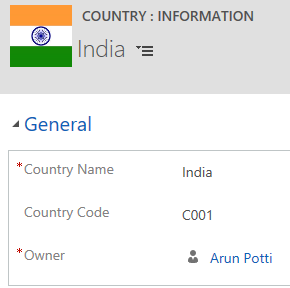
Hope you have successfully uploaded the required image for your record.

