

The project management tools in Dynamics 365 Project Operations help you easily run projects. The scheduling tools help project managers and teams stay productive. The tool helps in below areas:
- Plan projects by using a work schedule and estimates.
- Estimate and track project costs and revenue.
- Use project estimates during the sales process.
- Forecast resource requirements for projects that are in the pipeline.
- Successfully deliver projects by tracking progress and cost consumption.
In this blog will learn to create the project Operations Project.
Project Creation
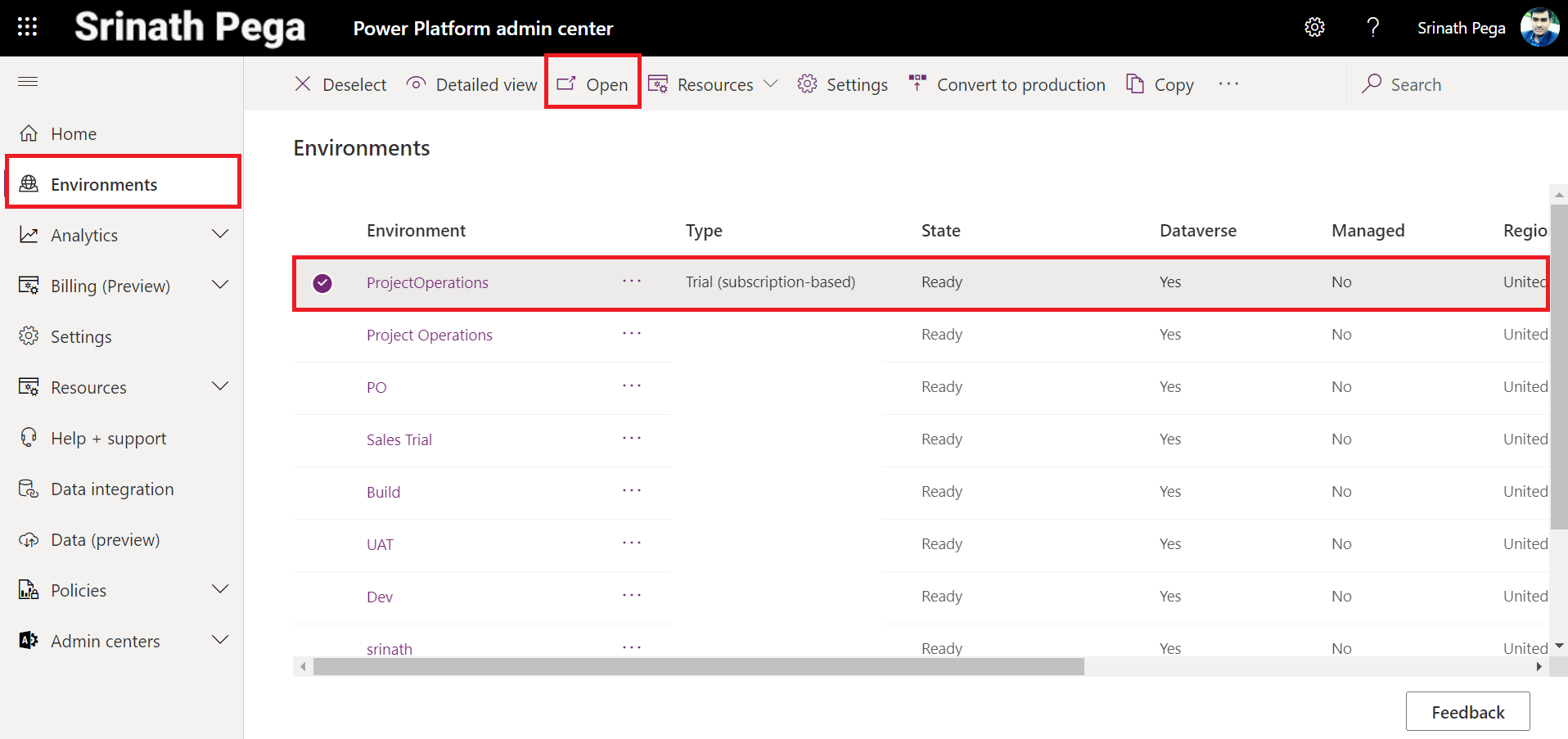
- Open Power Platform Admin Center https://aka.ms/ppac.
- Select your environment ProjectOpsTrialnnnnnnn and click on Open environment.
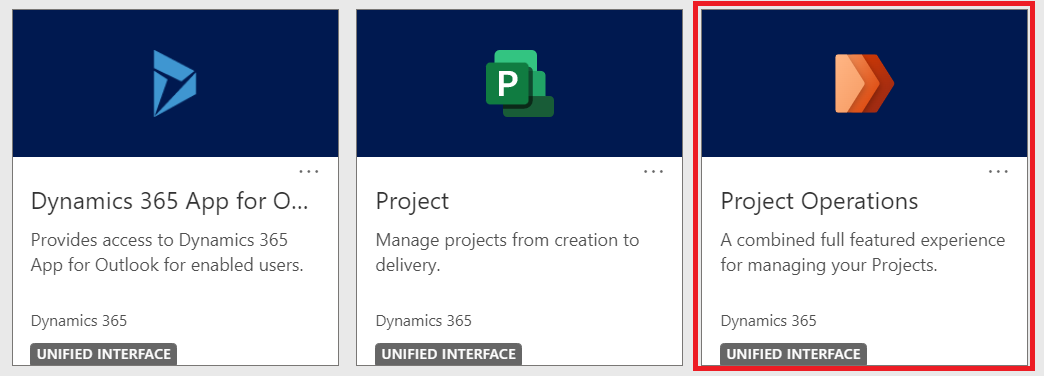
3. Open the Project Operations Model-driven App.
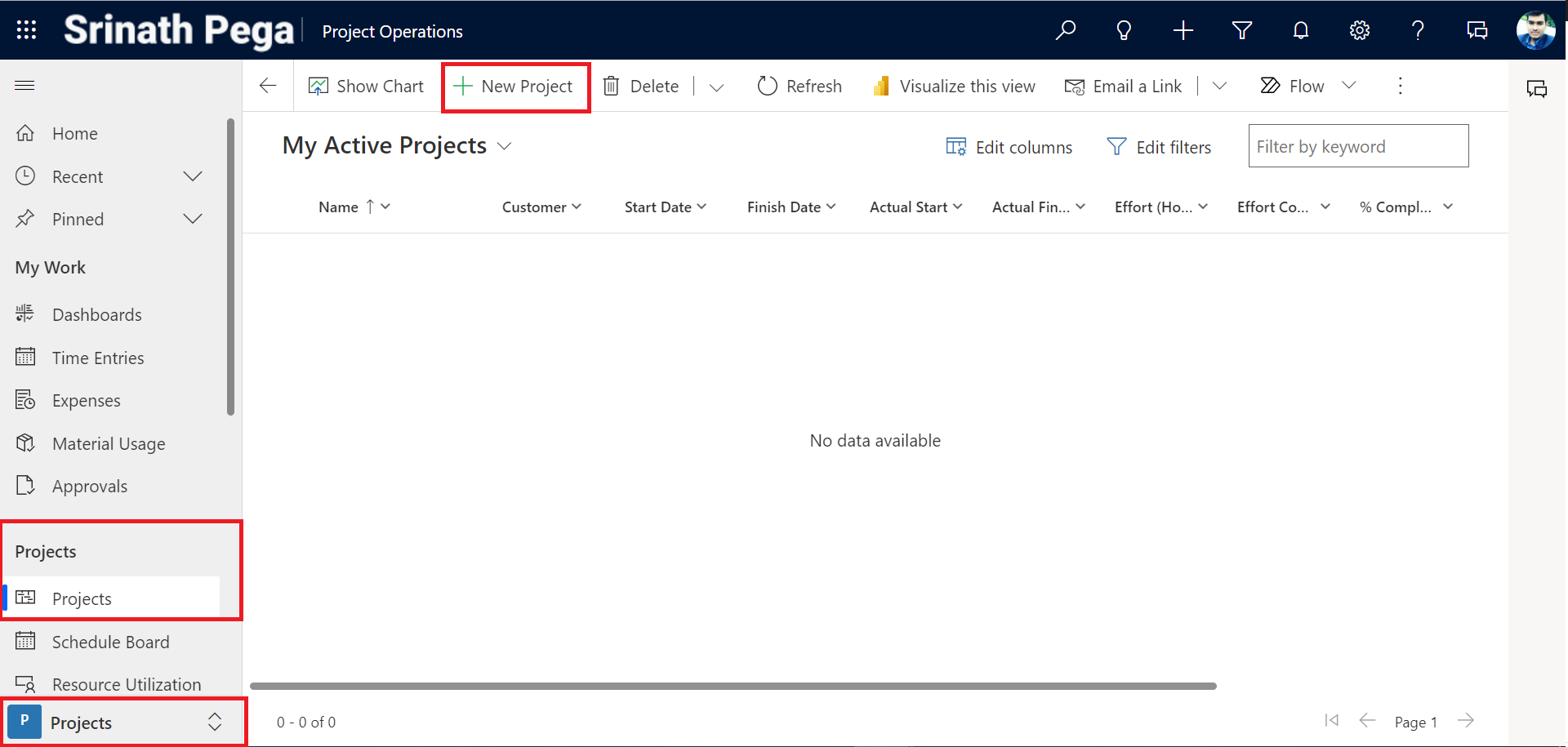
4. In the site map click on the Projects table under the Projects Group.
5. click on +New Poject.
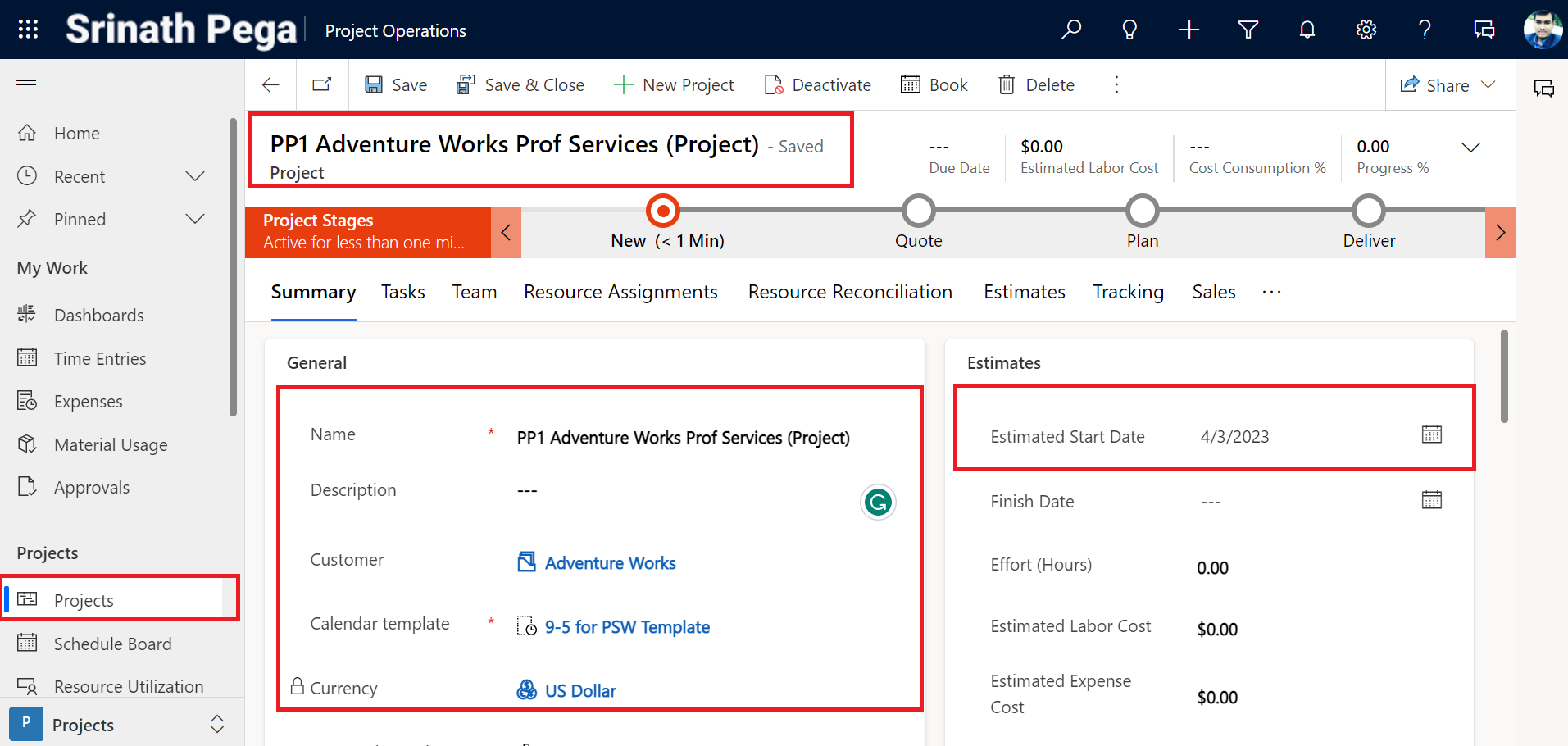
6. On the New Project page, complete the settings.
| Setting | Perform the following |
|---|---|
| Name | Type PP1 Adventure Works Prof Services (Project). |
| Customer | Select Adventure Works |
| Calendar template | Select 9-5 for PSW Template |
| Estimated Start Date | Click the calendar icon and select the date that is Monday (this week) |

7. click on Save to Save the Project.
Hope you learn something, Thanks for Reading 📖!
Happy Power365ing!

