
Introduction
The wrap feature in Power Apps lets you create native mobile versions of your canvas apps as custom-branded Android and iOS mobile apps. You can distribute such wrapped native mobile apps to the end users through Microsoft Intune, Microsoft app center, Google Play or Apple Business Manager, or other native distribution methods.
In this blog, we will learn the installation of JAVA and Android Studio to prepare the system for the generation of the Signature Hash code Code Sign in.
Java Installation
- Go to Java Download.
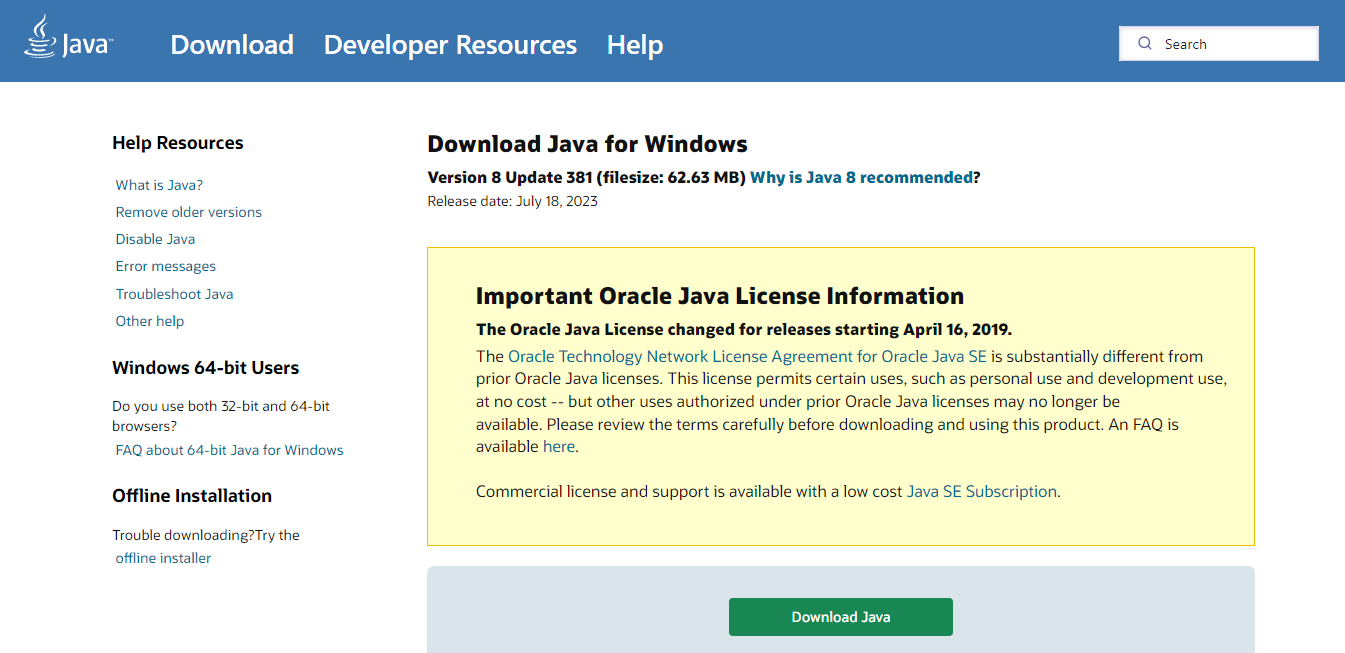
2. Click on Install to install Java into the system.
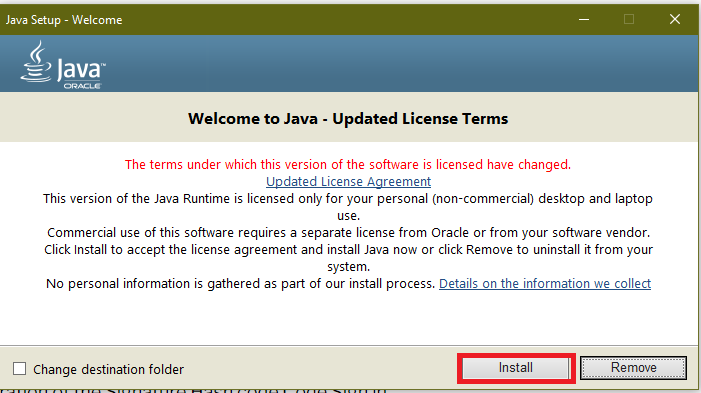
3. Java installer Takes a few minutes to install Java.

4. Installation status.

5. Click on Close.
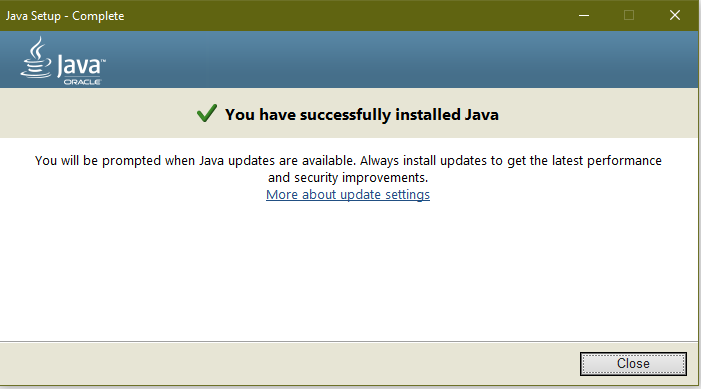
6. To verify the installation of Java.
7. Search for cmd in the Windows start menu and Click on Run as administrator of the Command Prompt.
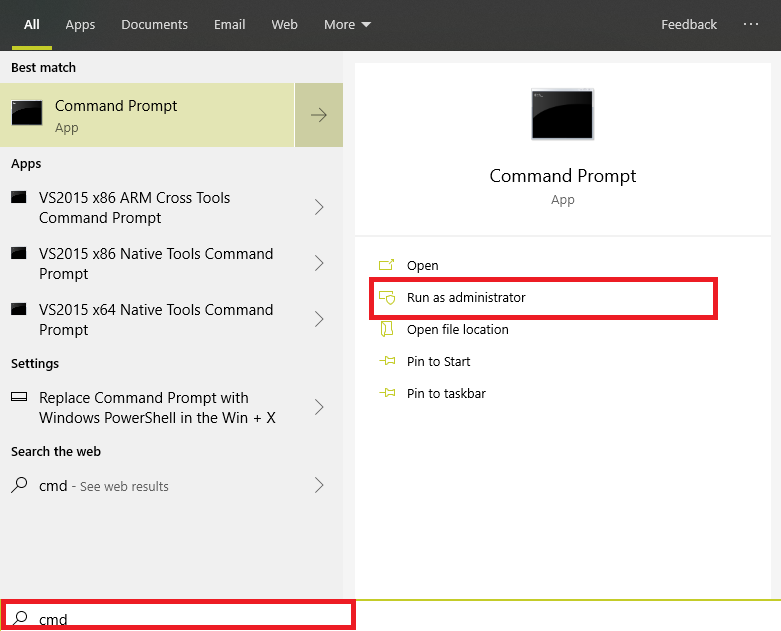
8. To verify the Java installation Run the command.
java -version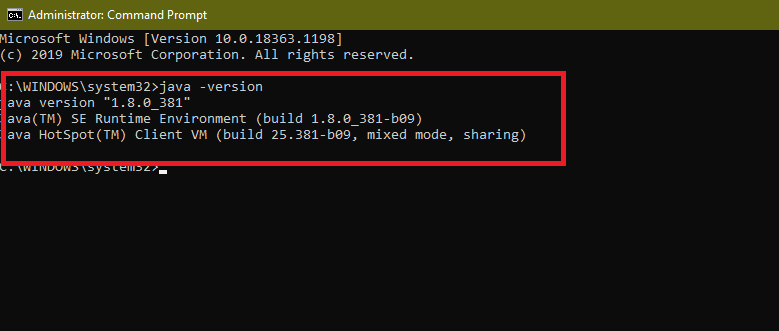
Android Studio Installation
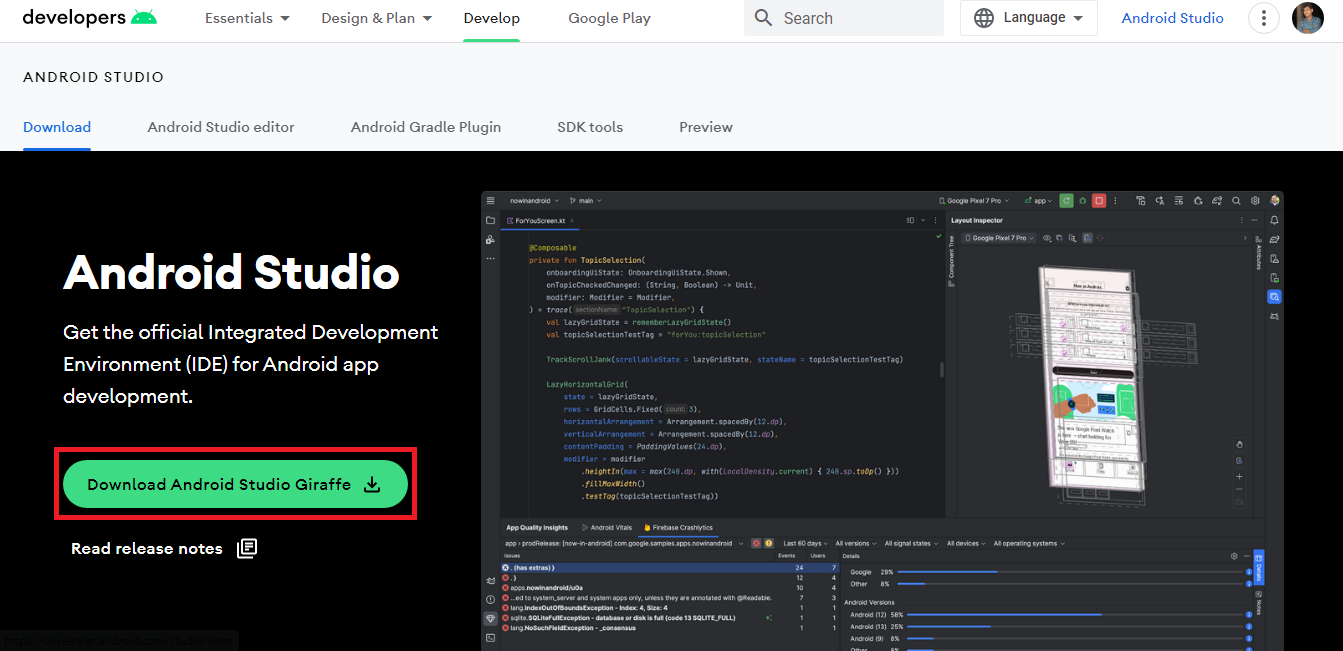
- Go to Android Studio and download.
2. Run the Android Studio setup file and click on Next.
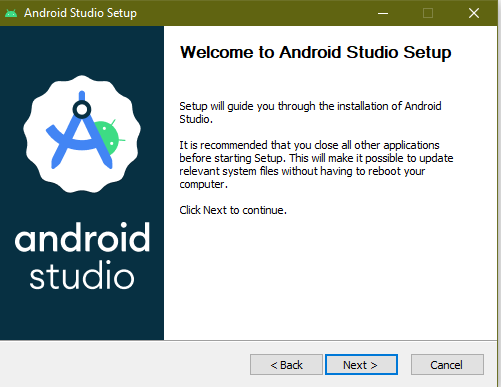
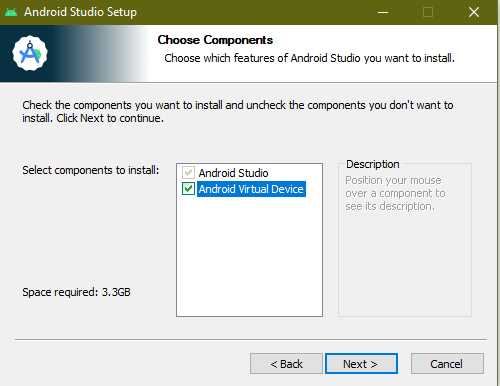
3. Make sure that Andriod Studio is selected and click Next.
4. This is the directory Andriod studio will install and click on Next.

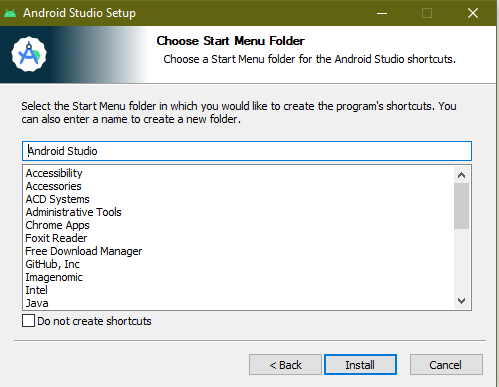
5. we can choose the folder and we can create a new folder as well .(In my case I leave as it is) and click on Next.
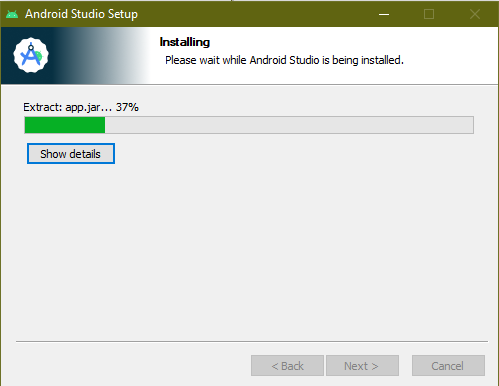
6. Takes a few minutes to install.
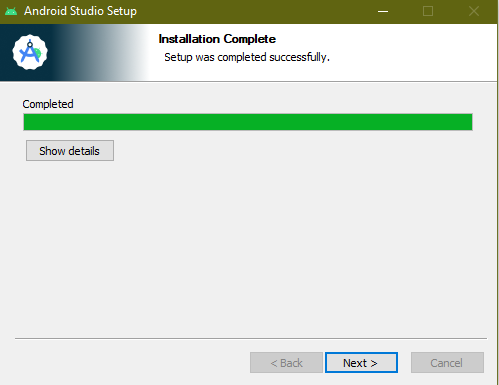
7. On successful installation click next.
8. Click Finish to Open Android Studio.
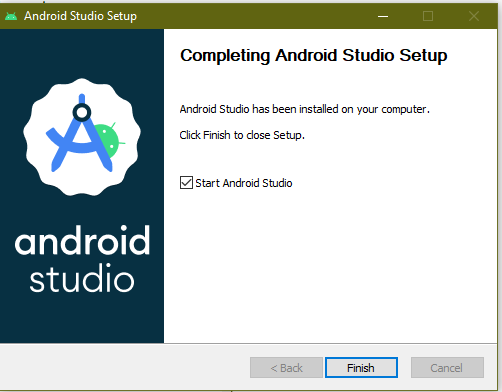
9. Click Next on Welcome Studio
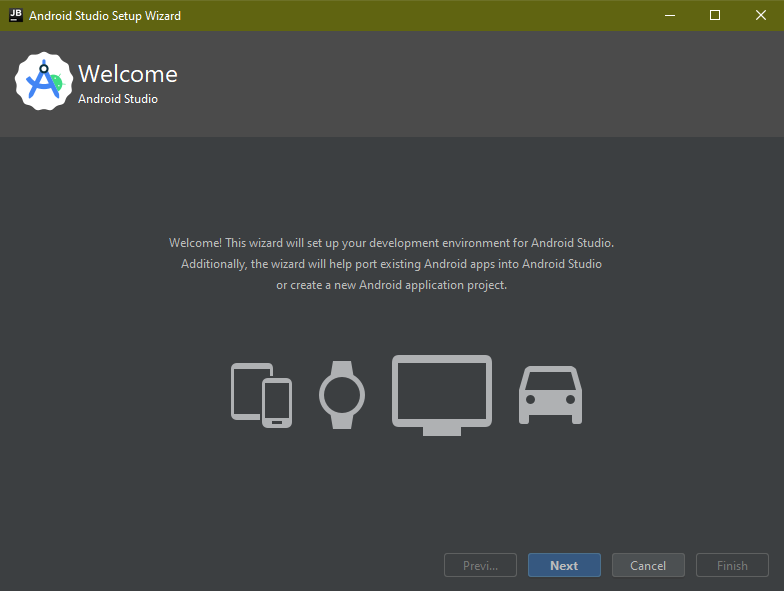
10. Select a standard setup and Click Next.
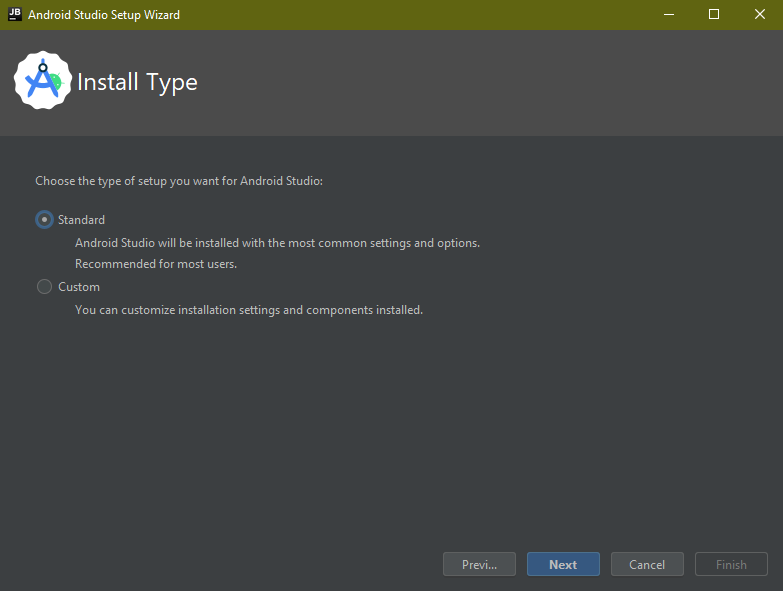
11. Select the UI and Click Next.
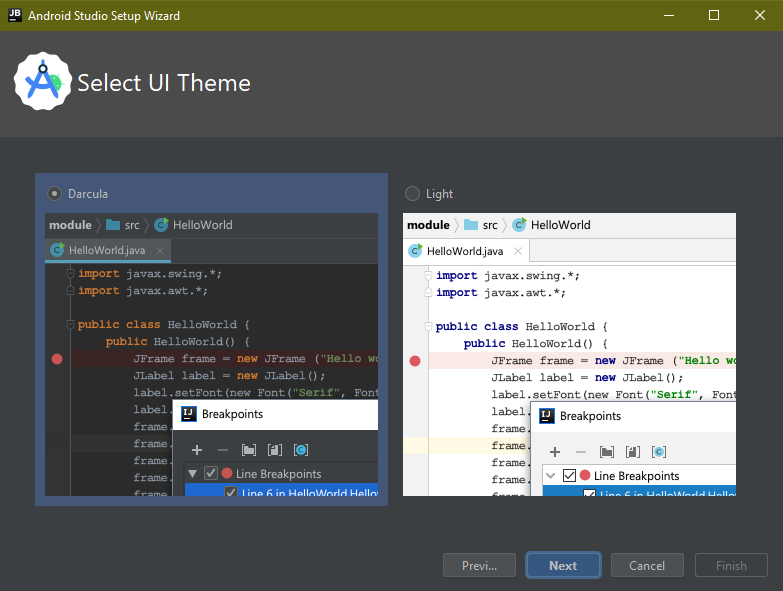
12 Click Next on verify.
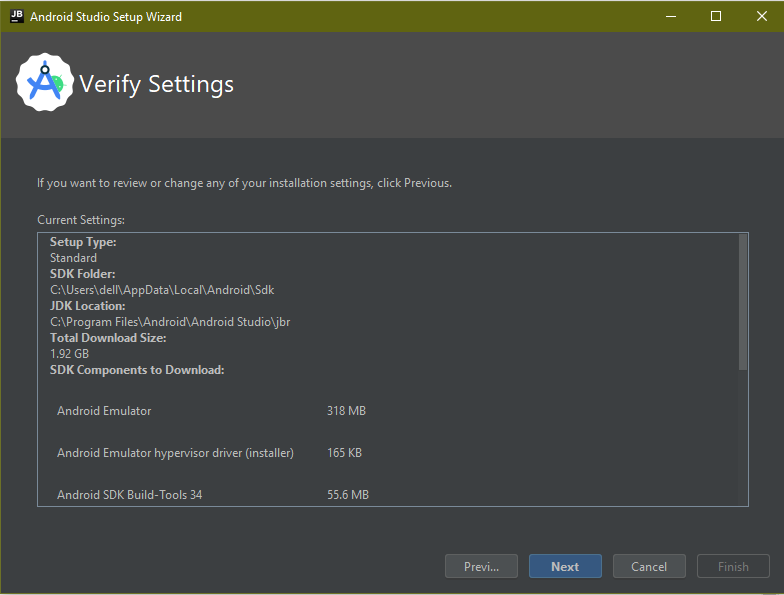
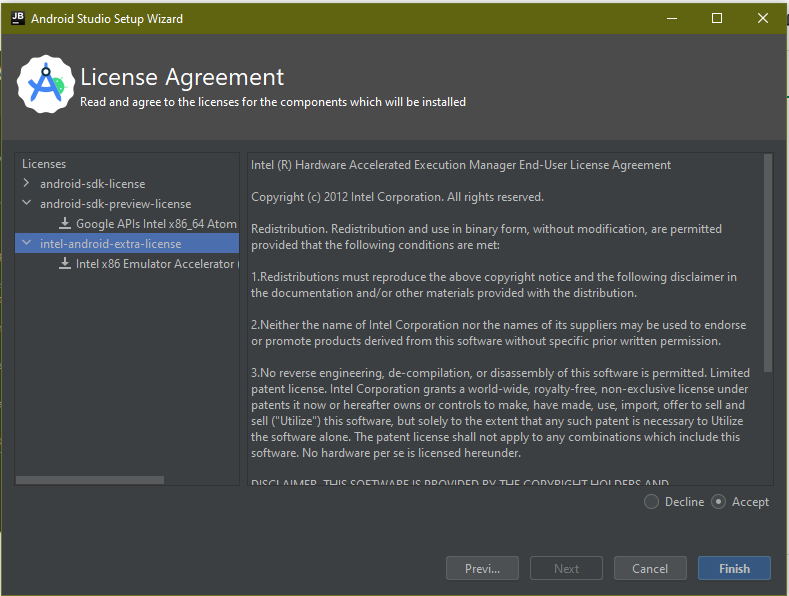
13. Accept the license agreement and Click finish.
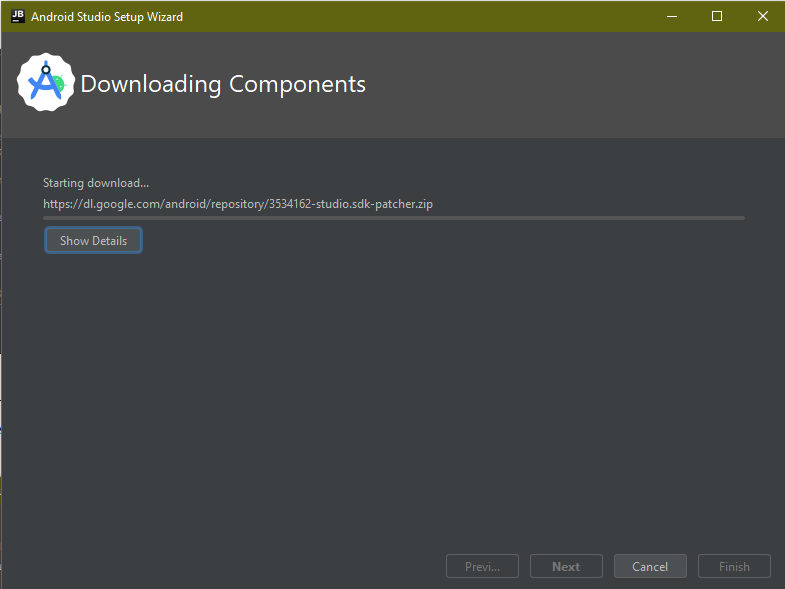
14. Takes a few minutes to download and install the components.
15. Andriod Studio opens after the installation.

Hope you learn something, Thanks for Reading 📖!
Happy Power365ing!

