

Introduction
Microsoft Dynamics 365 Business Central integrated with Microsoft Dynamics 365 Sales can give your salespeople that insight. The integration lets people view Business Central information while working in Dynamics 365 Sales. To connect and sync data with other Dynamics 365 applications
Integrating the Dynamics 365 Business Central with Dynamics 365 for sales for the first time then First it needs to Integrate with Microsoft Dataverse.
In this blog will see the step-by-step process of connecting the Microsoft Dynamics 365 Business Central with Microsoft Dataverse.
Dataverse Connection set up with Dynamics365 Business Central Steps:
- Open Business Central.
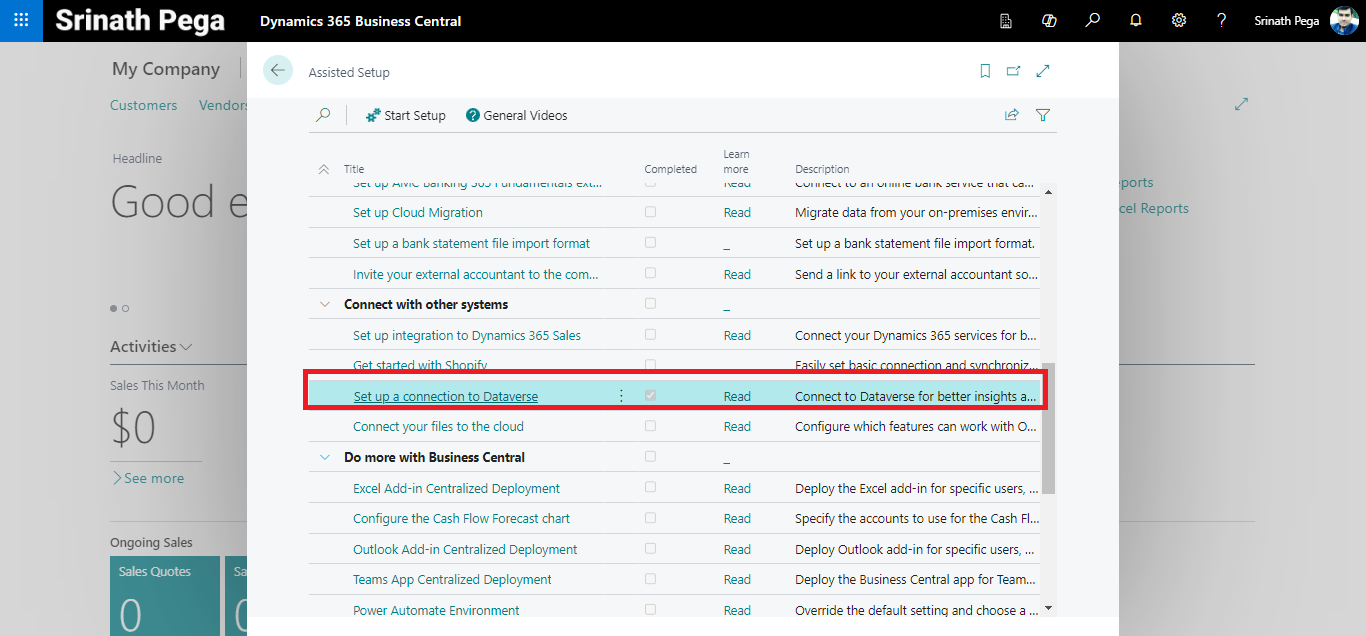
- Click on the settings icon in the top right corner and click on the Assisted setup.

3. It will open the list of setup options and go to connect with other systems.
4. Select the option to set up a connection to Dataverse.

5. If you select First Set up Integration to Dynamics 365 Sales before setting up a connection to Dataverse the following error will come.

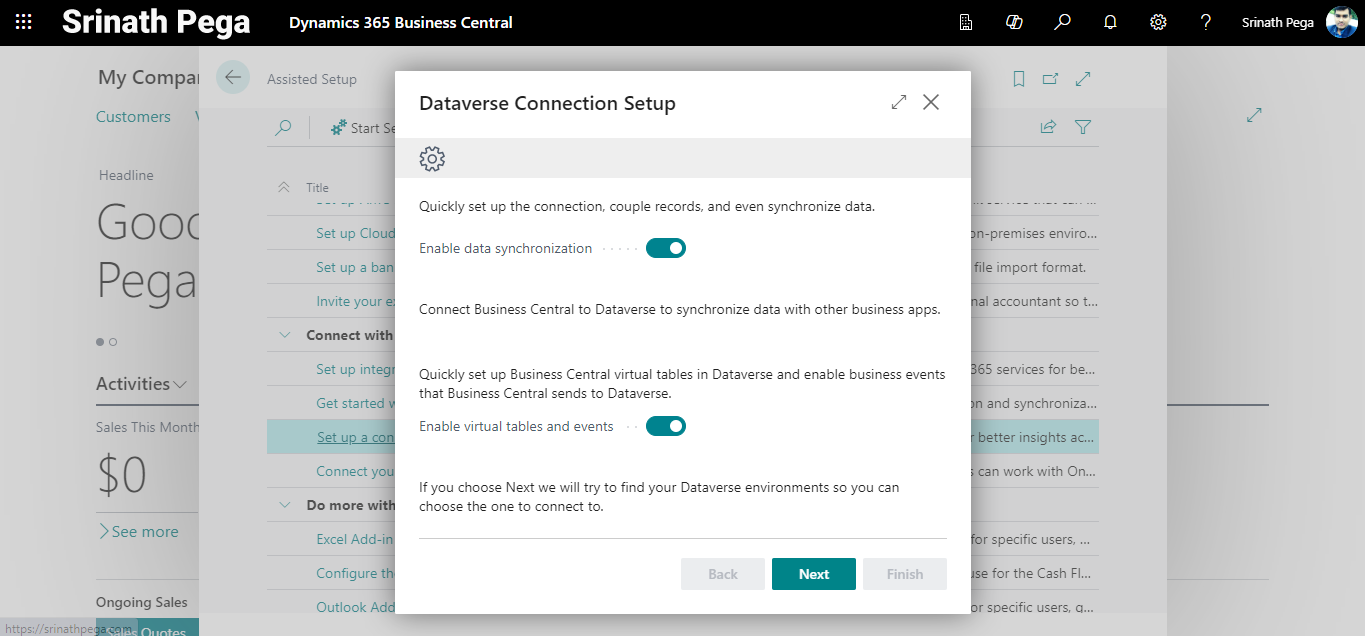
6. Turn on or off the Enable data synchronization and Enable virtual tables and events as per the business needs and click Next.
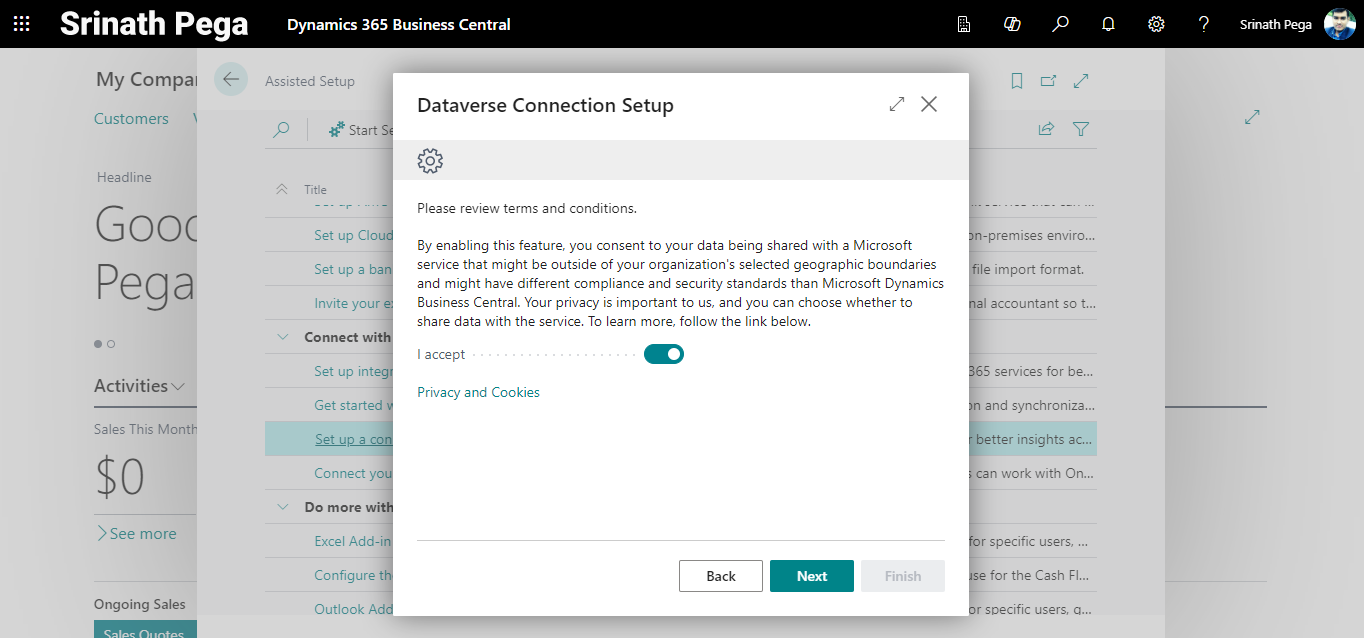
7. Accept the terms and conditions and click Next.
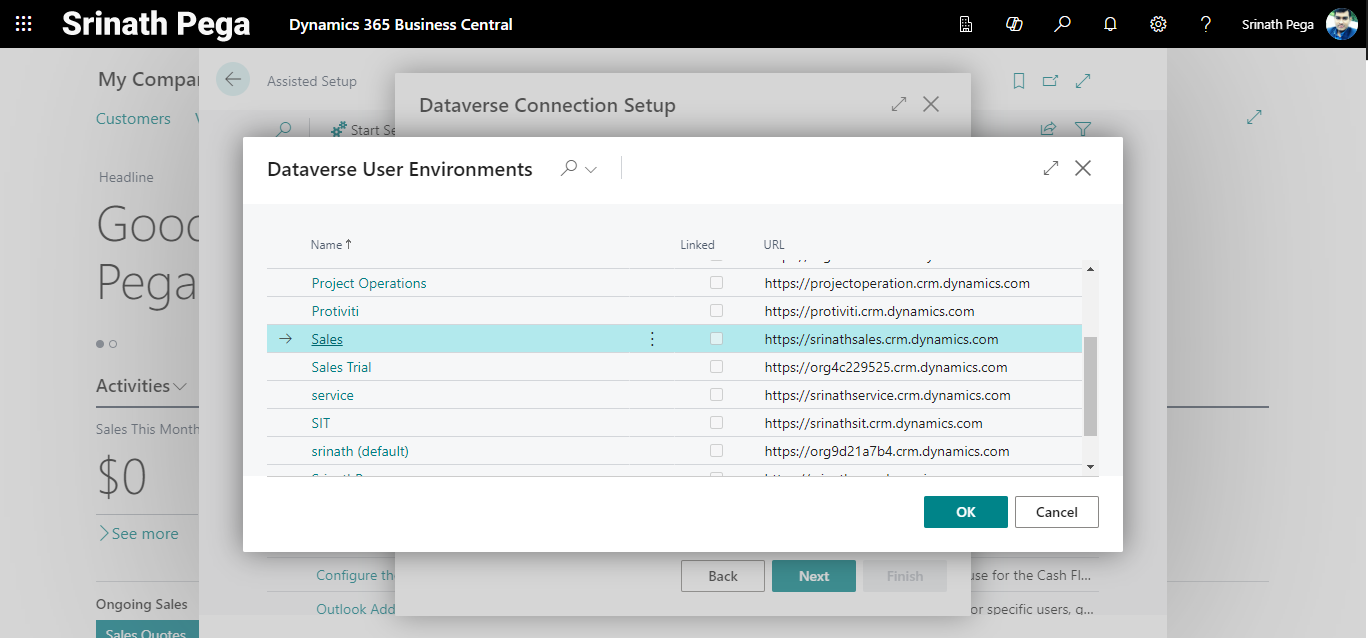
8. Select the Dataverse environment and click Ok.
9. Click on Sign in with administrator user.
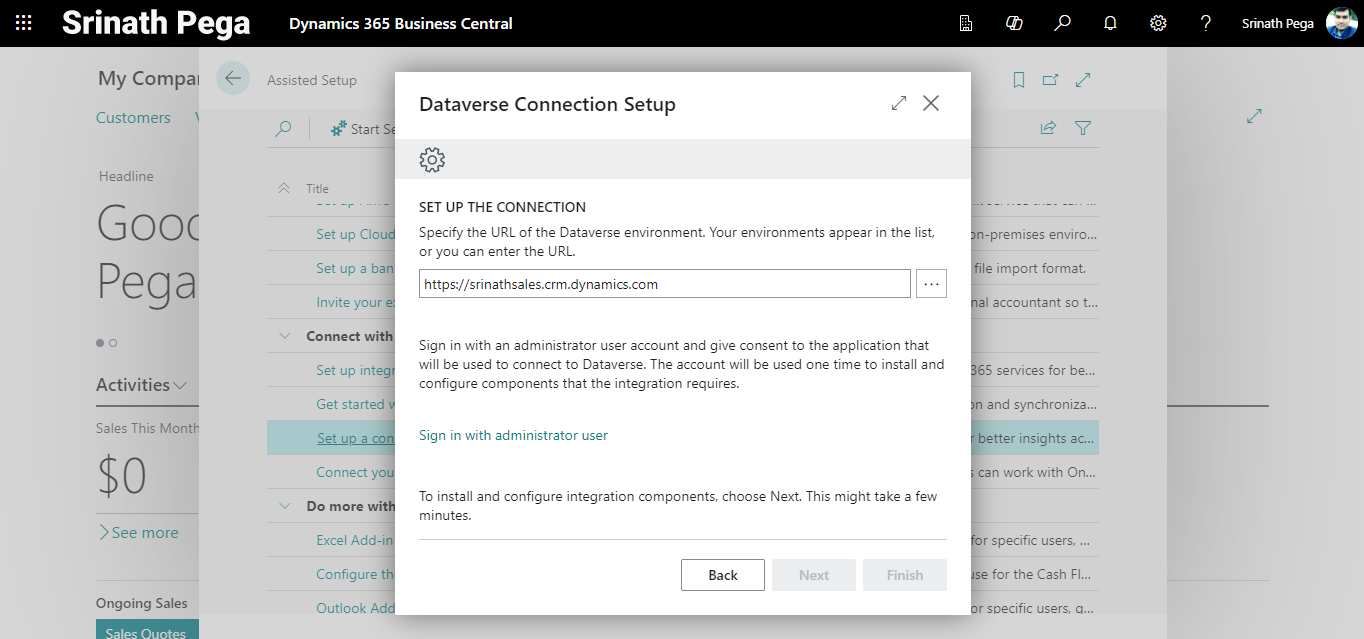
10. Click next on the successful sign-in with the administrator user.

11. It will take a few minutes to set up the dataverse connection.

12. Select the Ownership model Team or user.
13. Select set up with or without synchronization and click Next.

14. It Takes a few minutes to step the dataverse connection.
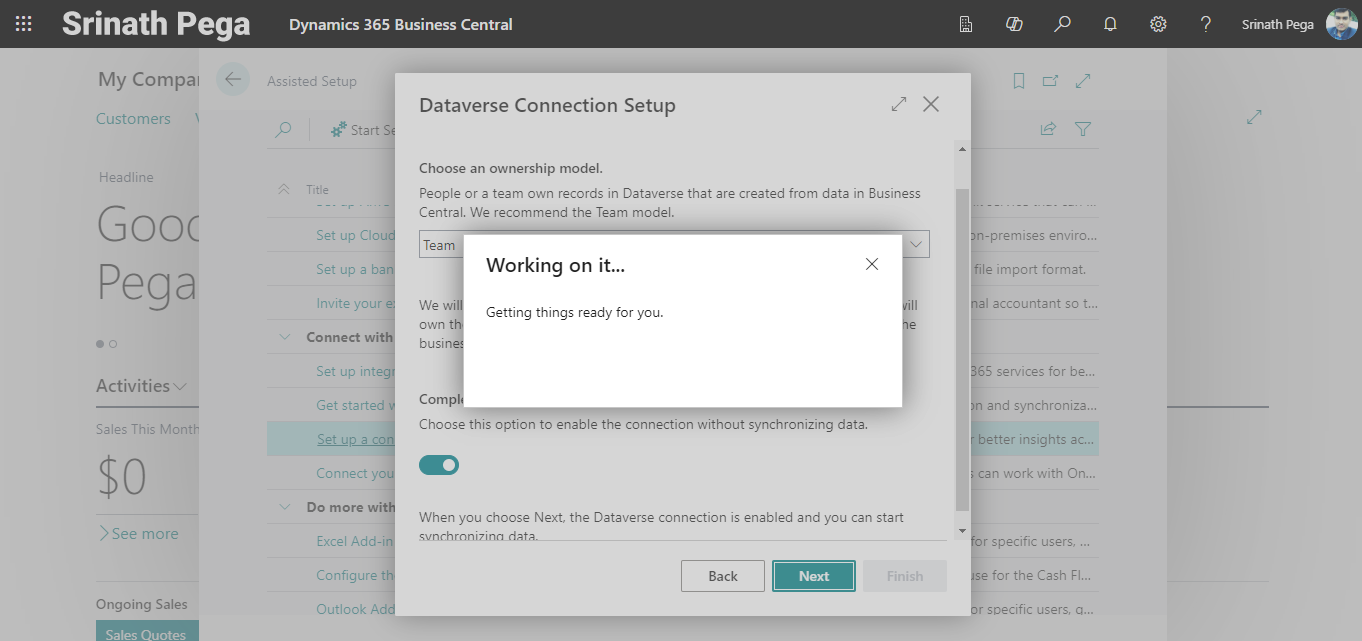
15. Click on Finish to complete the setup.
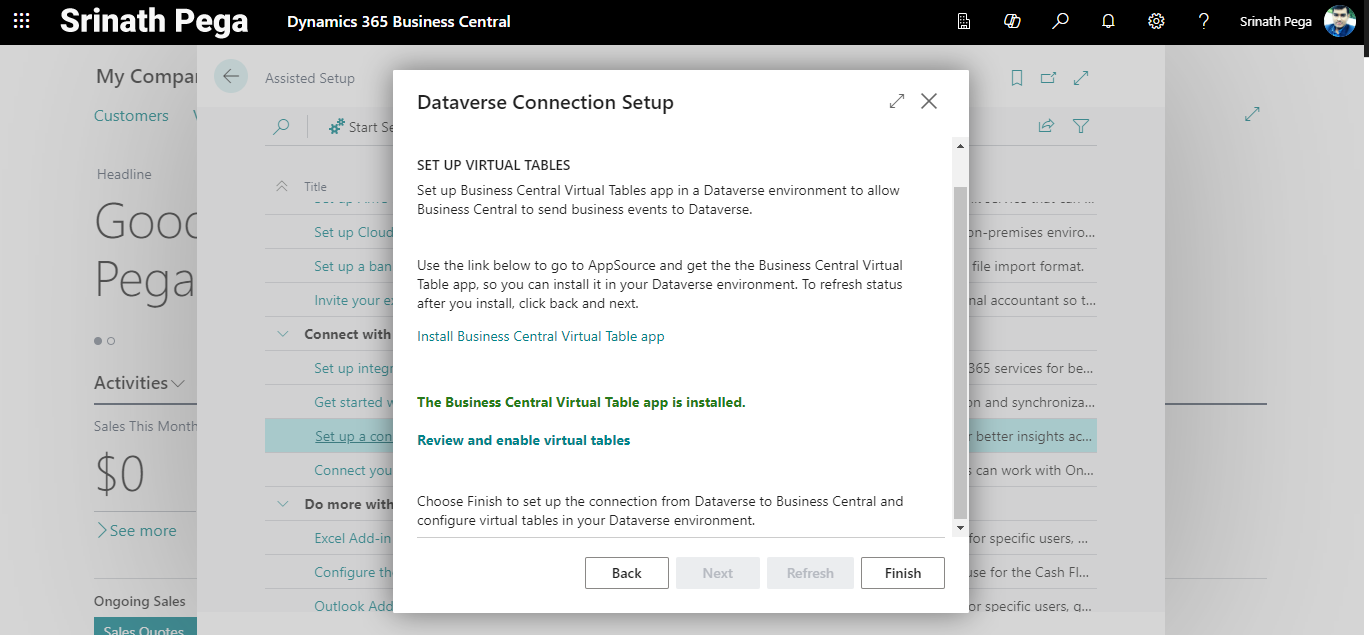
16. It Takes a few minutes to finish.

17. After the successful Dataverse connection setup will show the below details.

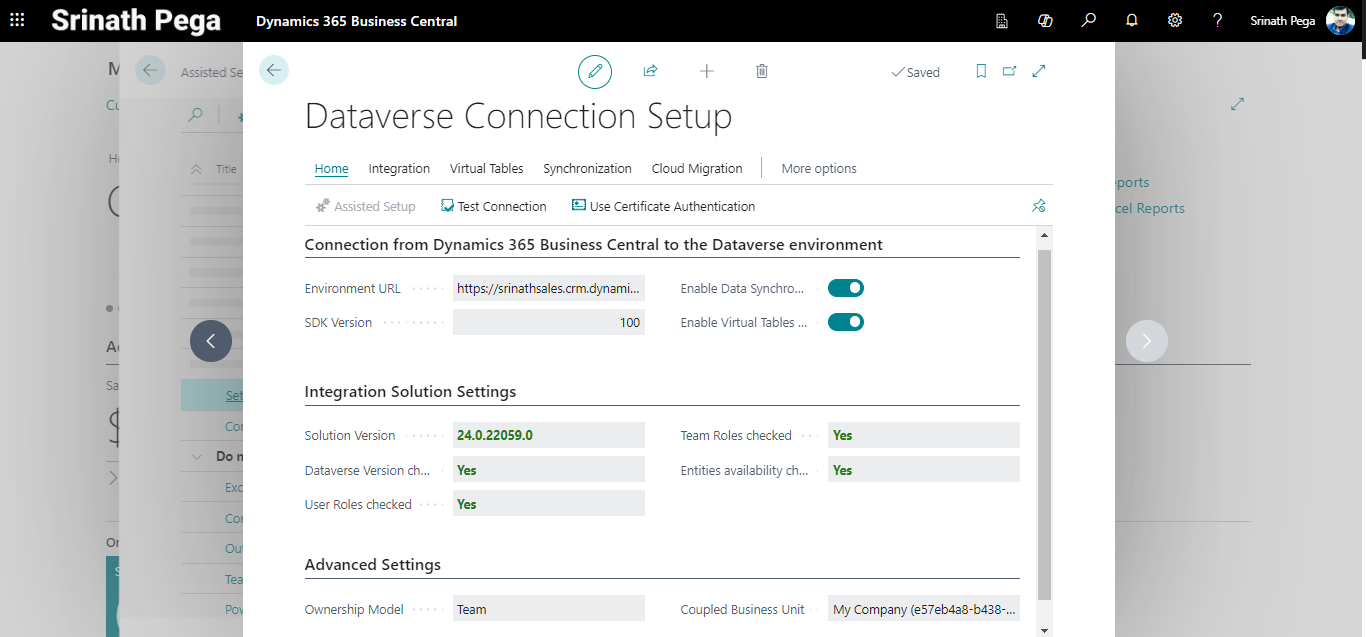
18. the set up a connection to Dataverse is completed.
Hope you learn something, Thanks for Reading 📖!
Happy Power365ing!

