

Introduction
Microsoft Dynamics 365 Business Central integrated with Microsoft Dynamics 365 Sales can give your salespeople that insight. The integration lets people view Business Central information while working in Dynamics 365 Sales. To connect and sync data with other Dynamics 365 applications
Integrating the Dynamics 365 Business Central with Dynamics 365 for sales for the first time, it first needs to Integrate with Microsoft Dataverse.
In this blog will see the step-by-step process of connecting the Microsoft Dynamics 365 Business Central with Dynamics 365 Sales.
In the previous blog, we have seen connecting the Microsoft Dynamics 365 Business Central with Dynamics 365 Sales.
Dynamics 365 Sales set up with Dynamics365 Business Central Steps:
- Open Business Central.
- Click on the settings icon in the top right corner and click on the Assisted setup.

3. It will open the list of setup options and go to connect with other systems.
4. Select the option to set up integration to Dynamics 365 Sales.

5. If you select First Set up Integration to Dynamics 365 Sales before setting up a connection to Dataverse the following error will come.

6. find the step-by-step process for the Setup connection with Dataverse.
7. After the successful Connection with Datverse, Click on set up integration with Dynamics 365 sales.
8. Click Next.
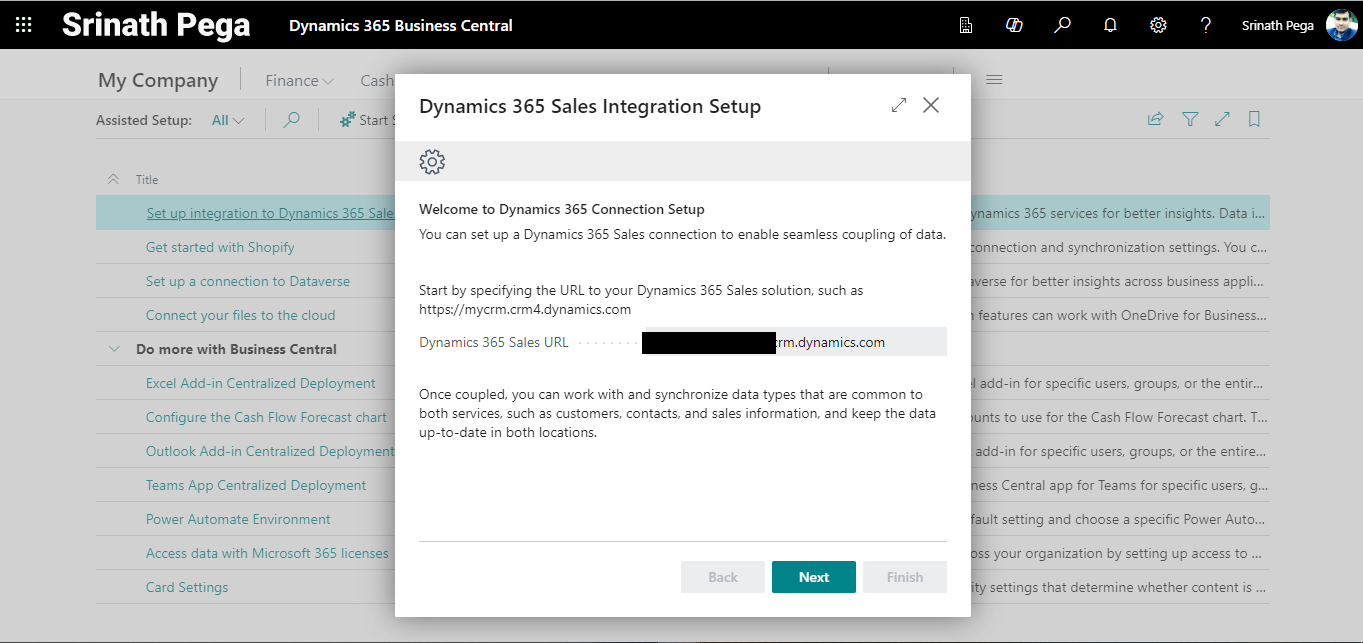
9. Click Next to enable the connection with Dynamics 365 Sales.
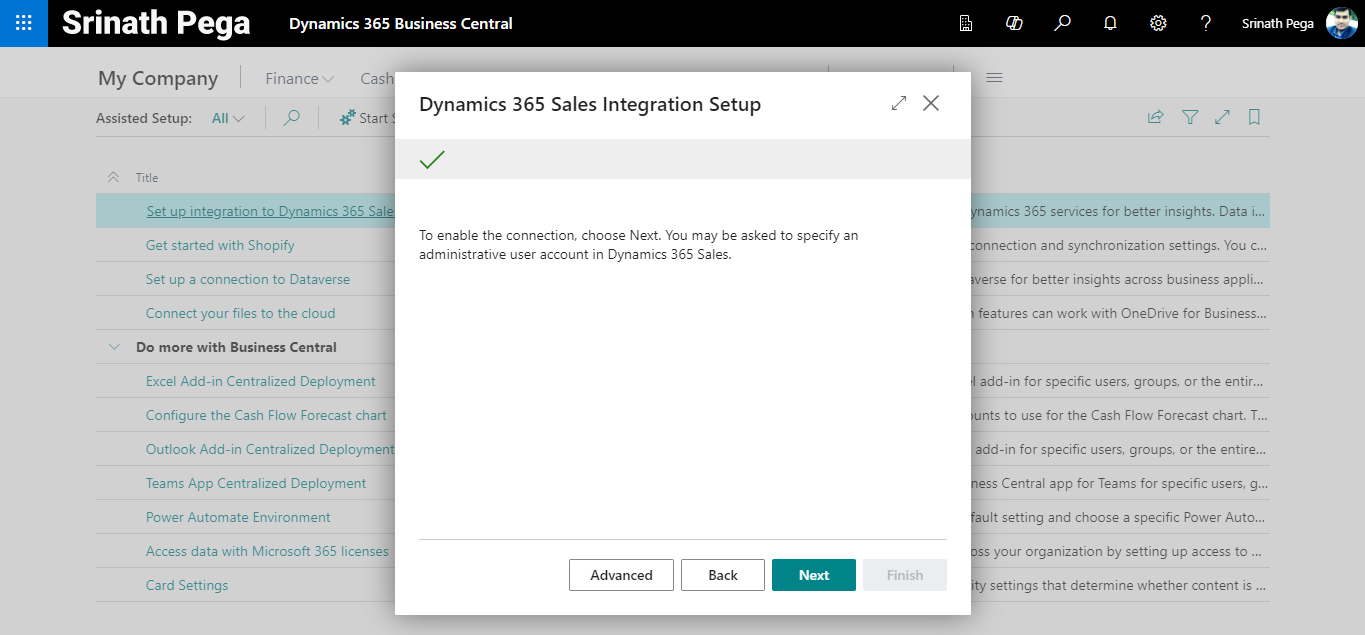
10. Click on Finish.
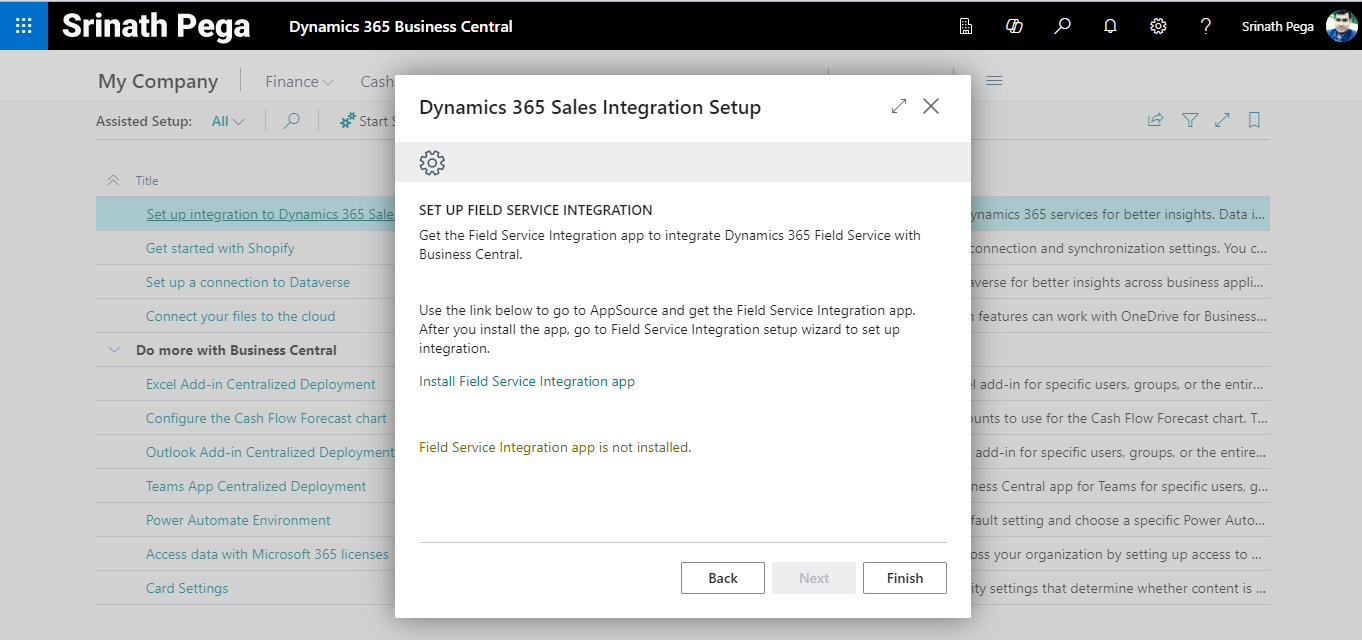
11. It will take a few minutes.
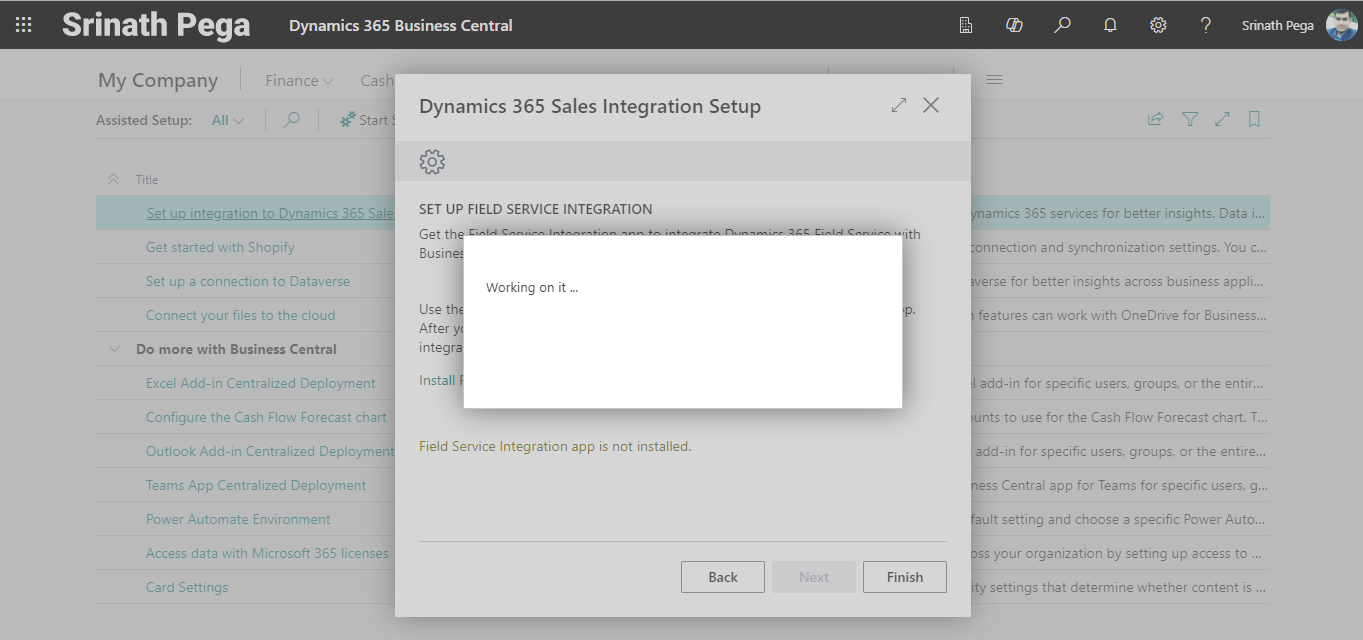
12. the setup through the wizard is finished.
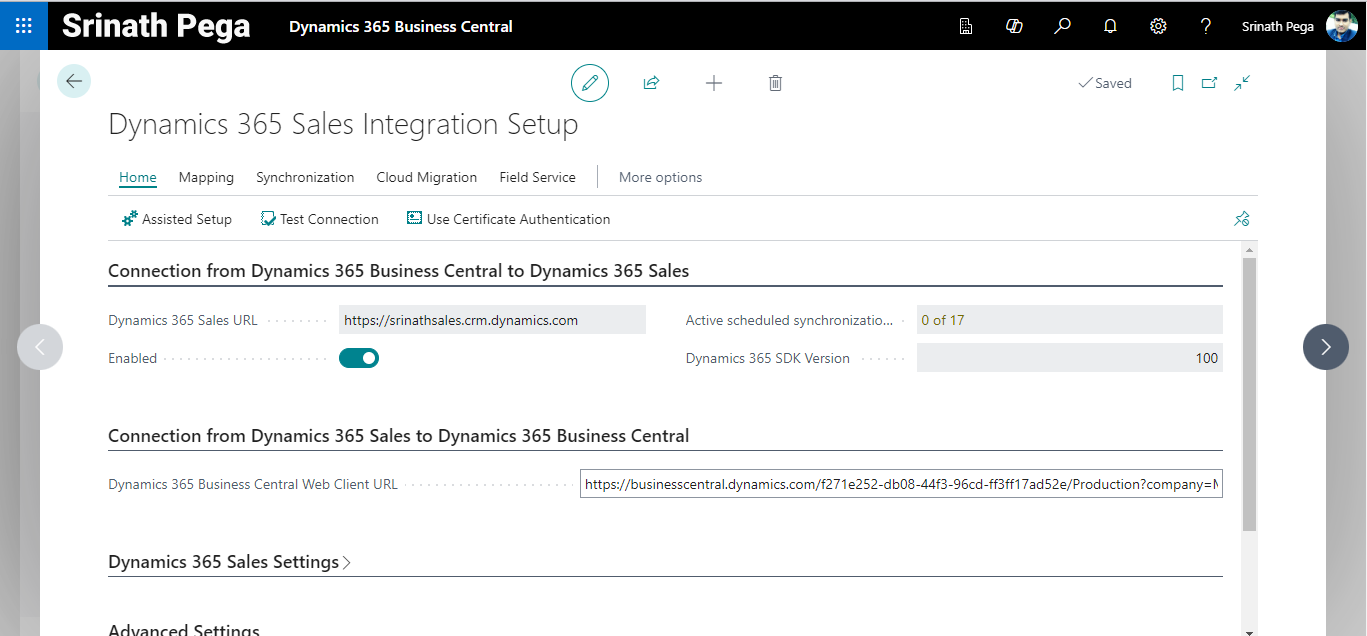
13. After Dynamics 365 Sales integration connection wizard we need to test the connection.
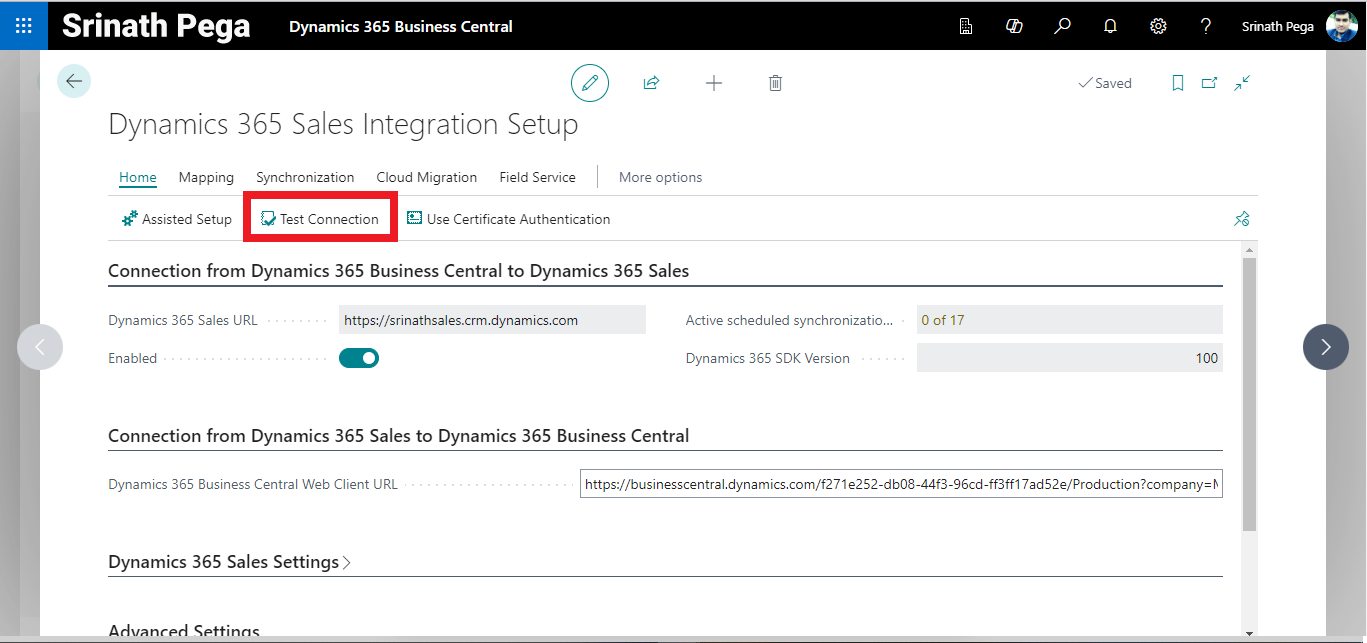
14. The Successful connection with Dynamics 365 Sales.
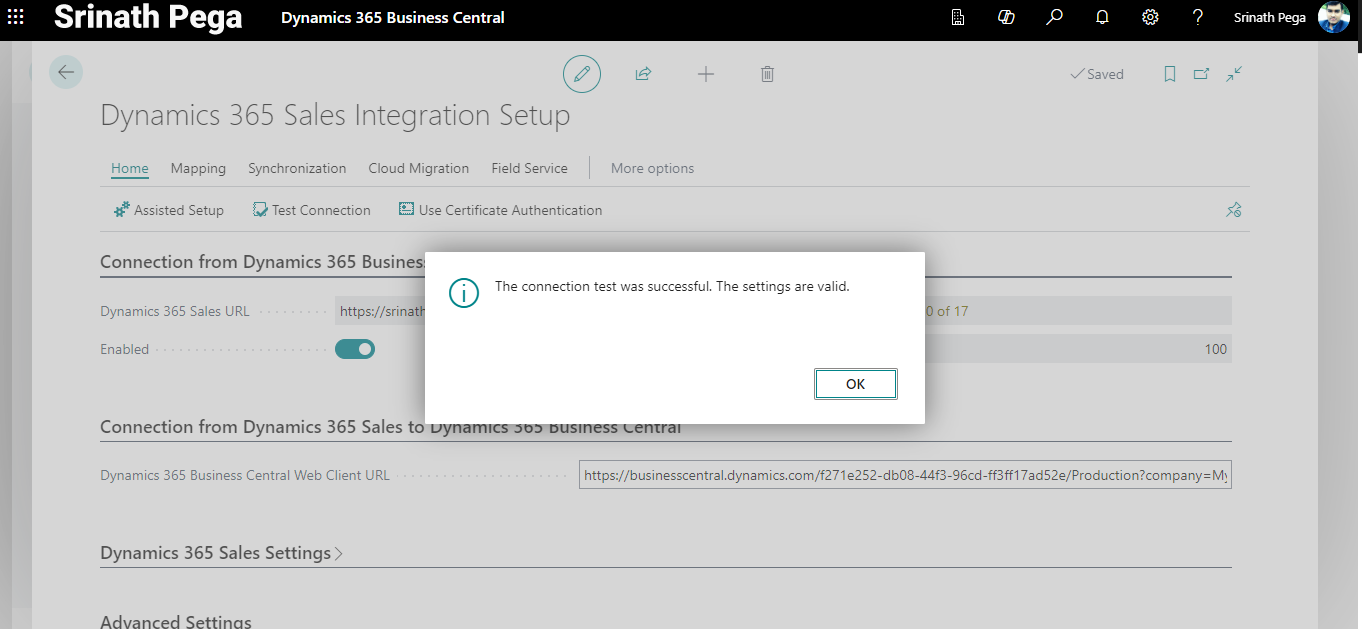
14. Need to check the Integration table mappings by selecting Mappings > Integration Table Mappings.
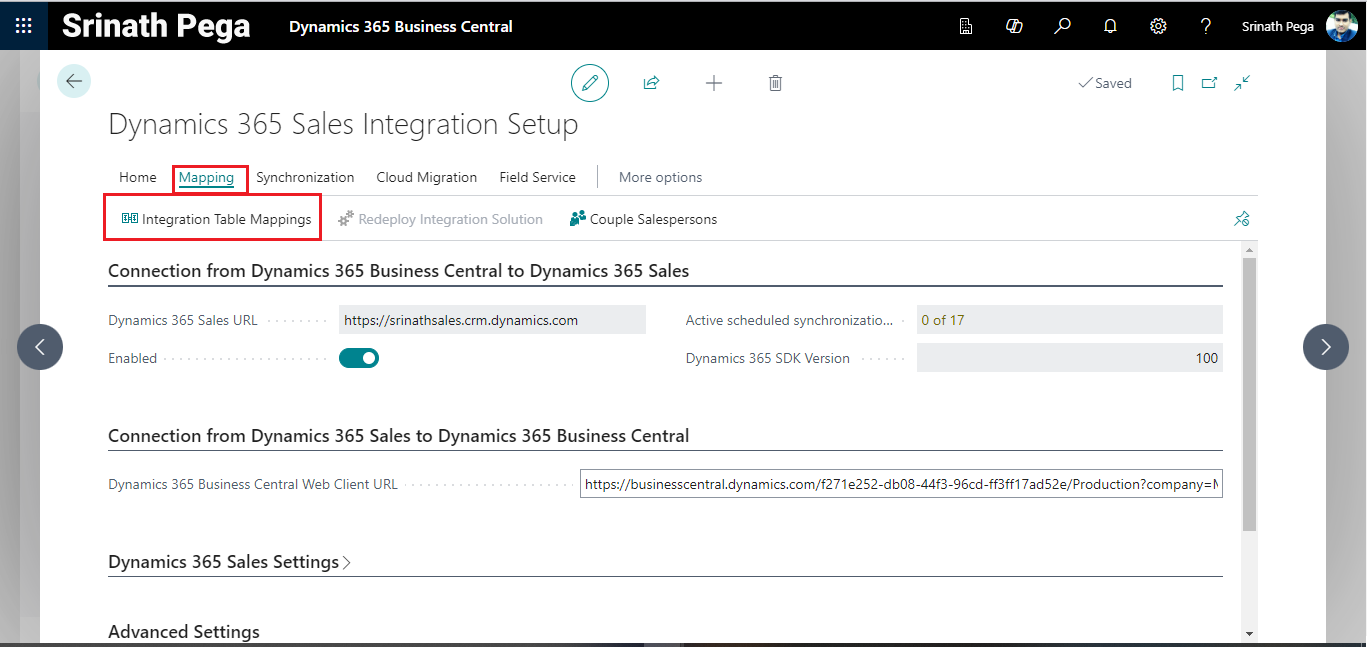
15. The Integration Table Mapping page displays the standard mapping between tables in Business Central and Dynamics 365 Sales that Business Central.
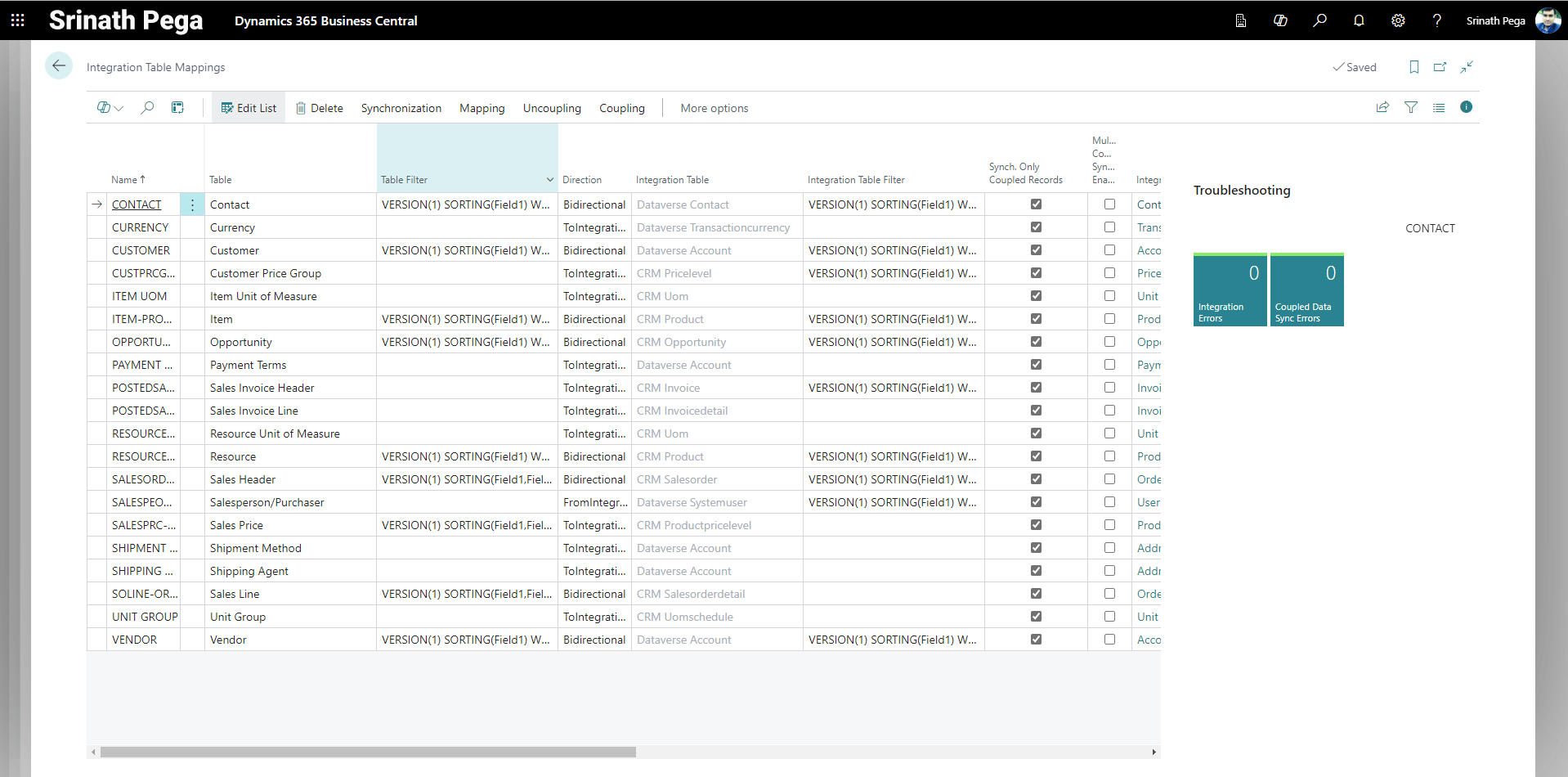
16. The Integration Table column shows in which tables the synced data (Sales or Dataverse).
17. Go to synchronization and run the Run Full Synchronization to sync both systems.
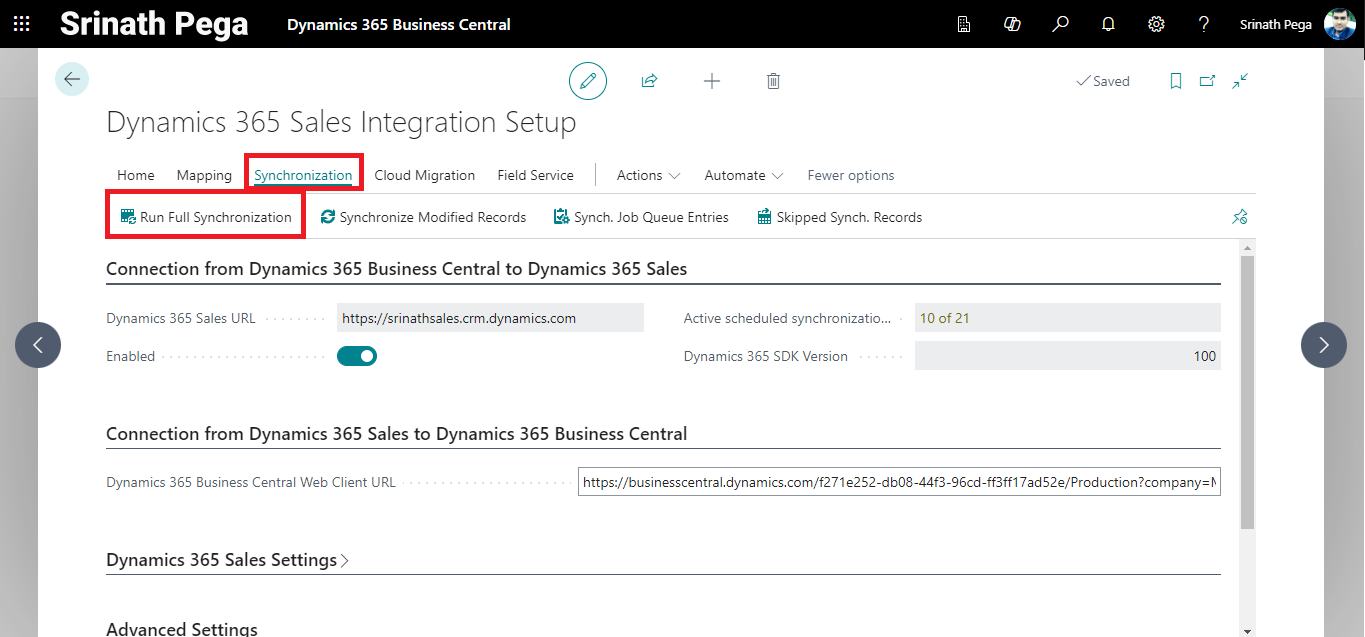
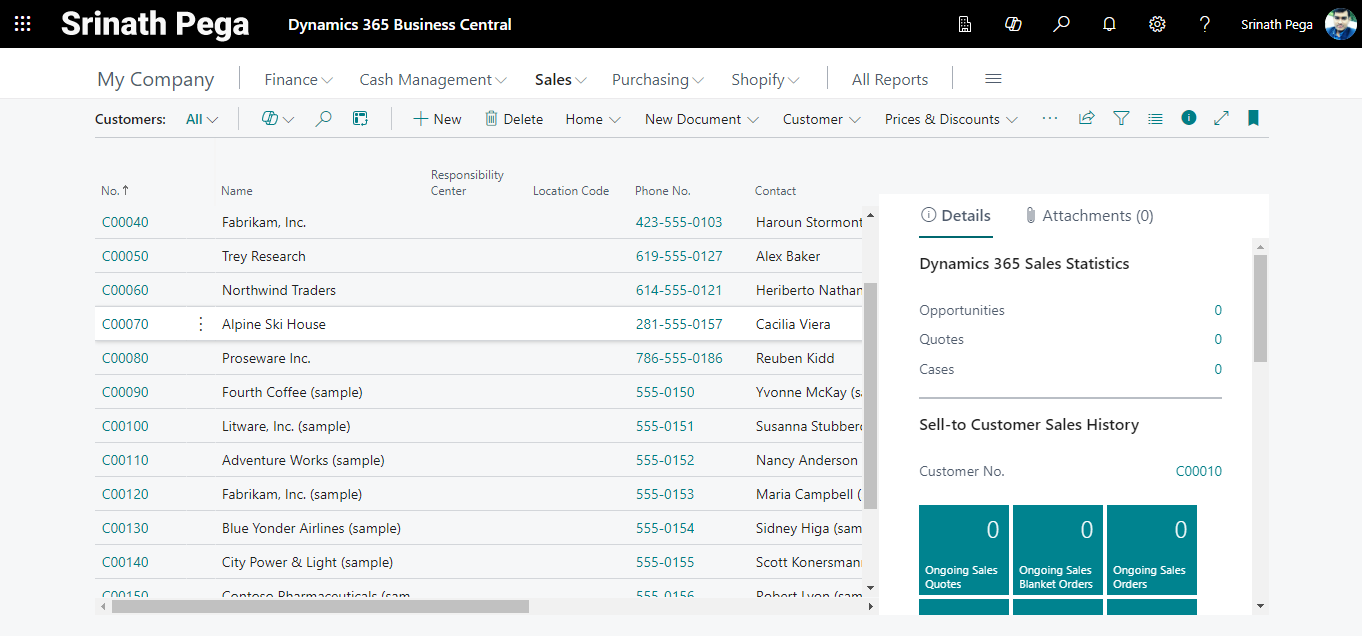
18. After the sync data will flow from Dynamics 365 365 sales and Business Central and vice versa based on the table mapping.
Hope you learn something, Thanks for Reading 📖!
Happy Power365ing!

