I have created a custom entity named “Country” and want to set an image for it. Follow the below steps to do the same. Step 1: Open CRM. Goto Settings -> Customizations -> Customize the System -> Entity. Step 2: Create an Image Data Type Field in the Country Entity as shown below. Step 3: Open the Country Entity Main Form. Step 4: Click on Form Properties and click on Display Tab. Select the Show image in the form to opt … Continue reading How to enable Image for an Entity in Dynamics CRM?
Author: Srinath Pega
Lock or Unlock Business process flow fields using JavaScript in CRM
Use the below syntax to lock or unlock the business process flow fields in a CRM record using javascript, Lock: Xrm.Page.getControl(“header_process_FieldSchemaName”).setDisabled(true); Unlock: Xrm.Page.getControl(“header_process_FieldSchemaName”).setDisabled(false);
Business Applications October ’18 release overview
Click on the image for more details.
Microsoft Dynamics 365 v9.0: How to fix connectivity issues between SSDT + Report Authoring Extension and Dynamics 365
At the moment (February 14, 2018) Microsoft hasn’t released version of Report Authoring Extension that supports both v9.0 and enforced TLS 1.2. This post will help people who develops reports for latest Dynamics 365 v9.0 using SQL Server Data Tools and FetchXml Authoring Extension. This is how it looks now when you try to run report against v9.0 … Continue reading Microsoft Dynamics 365 v9.0: How to fix connectivity issues between SSDT + Report Authoring Extension and Dynamics 365
Problem to connect to CRM 365 with SSRS
I have Visual Studio Data Tool 2012/2015 and I installed the extension SSRS for dynamics CRM365. I created a connection with the following URL: https://spega.crm.dynamics.com I create a Fetch XML connection to the server and when I try it: I have a popup with the following message in popup windows : Credentials are already saved to … Continue reading Problem to connect to CRM 365 with SSRS
FETCHXML REPORTS
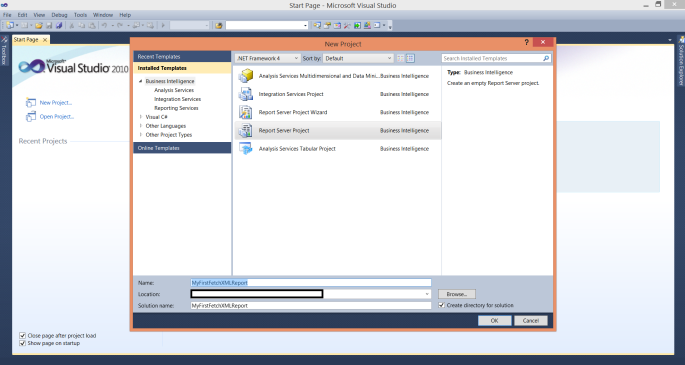
We can create custom reports using FetchXML, useful for both Online and OnPremise CRM. Quickly see a simple example, to get the list of all Contacts. Step 1: Open BIDS (Business Intelligent Development Studio) Step 2: Click New Project and select “Report Server Project”. Name your report “MyFirstFetchXMLReport”. Step 3: In Solution Explorer, Right Click on Reports Folder and Select … Continue reading FETCHXML REPORTS
Unified Service Desk 3.3.0 released
You can download Unified Service Desk 3.3.0 Version Package Deployer and Executables from the below links, Name Size Download Link Description Dynamics365-USD-3.3.0.929-PackageDeployer.exe 119.6 MB Click here USD Package Deployer to install solution components in CRM Dynamics365-USD-3.3.0.931-amd64.exe 82.7 MB Click here 64 bit USD client Dynamics365-USD-3.3.0.931-i386.exe 82.7 MB Click here 32 bit USD Client Click here to … Continue reading Unified Service Desk 3.3.0 released
How to get the number of Tables and their records information in MSCRM On-premise?
Follow the below steps to get the volume of Tables, Step 1: Open MSCRM SQL Database. Step 2: Under Databases, select the required <CRM_Org_Name>_MSCRM database. Right click on it and click on Reports -> Standard Reports -> Disk Usage by Table. Step 3: Disk Usage by Table report will be displayed as shown below. Other way to do the same is, Step 1: Select the required MSCRM database. … Continue reading How to get the number of Tables and their records information in MSCRM On-premise?
Enable Organization Insights Preview in Dynamics 365 CRM Online
Follow the below steps to enable Organization Insights preview feature in Dynamics CRM 365. Step 1: Open Dynamics 365 CRM Online. Go to Settings -> Administration -> System Settings -> Previews. Step 2: Select I have read and agree to the license terms. Step 3: Select Organization Insights Preview (Enable Organization Insights Preview) as Yes and click on OK. Step 4: Refresh the CRM Online Organization. Go to Dashboards and Click on the Organization Insights Dashboard. … Continue reading Enable Organization Insights Preview in Dynamics 365 CRM Online
Connect to CRM Online or On-premise using C# SDK
Follow the below Steps, to connect CRM Online or On-Premise using C#, Step 1: Include the below References in your project, you can get the same from Latest SDK. Open SDK and goto the path, SDK –> Bin for the dlls Microsoft.Crm.Sdk.Proxy Microsoft.Xrm.Sdk Step 2: Include the below Framework Assemblies in your project, System.Runtime.Serialization System.ServiceModel Step 3: Finally … Continue reading Connect to CRM Online or On-premise using C# SDK