

Introduction
The wrap feature in Power Apps lets you create native mobile versions of your canvas apps as custom-branded Android and iOS mobile apps. You can distribute such wrapped native mobile apps to the end users through Microsoft Intune, Microsoft app center, Google Play or Apple Business Manager, or other native distribution methods.
In this blog, we will learn the installation of OpenSSL.

Regular users should not use OpenSSL. On the Windows software platform, the OpenSSL installation is optional. The OpenSSL is a cryptographic SSL/TLS toolkit that provides a wide range of options for professionals working on digital certificates, SSL/TLS testing, application development or implementation, application testing, and security testing. OpenSSL facilitates you in performing a wide variety of activities. Here, mainly a couple of them are highlighted:
- On your network, you are able to create your own Certificate Authorities and provide certificates.
- Transform digital certificates between various formats for files.
- Private keys from the certificates can be exported or imported.
- Check that the HTTPS connections to the target website are secure.
- Check the destination website’s certificate.
- Run server and remote website benchmark testing.
- Extract from certificate information which includes the issuer, subject, issued and expiry dates, and biometrics.
- Develop CSR.
- To verify the contents, decode CSR and certificates.
OpenSSL Installation
The installation process is actually simple and straightforward to perform. Execute the OpenSSL installer soon after downloading it to install the application and set up the environment variables.
- Download the OpenSSL installer.
- Company’s official OpenSSL download website at https://slproweb.com/products/Win32OpenSSL.html and download the OpenSSL installer.
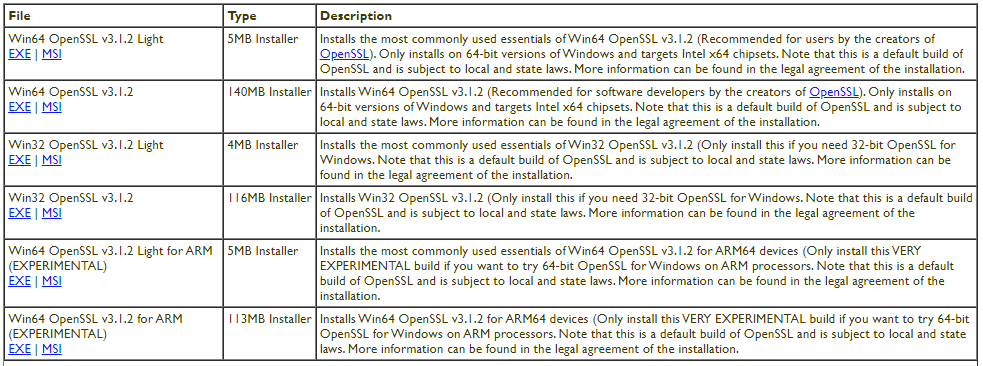
3. Install the downloaded OpenSSL installer.
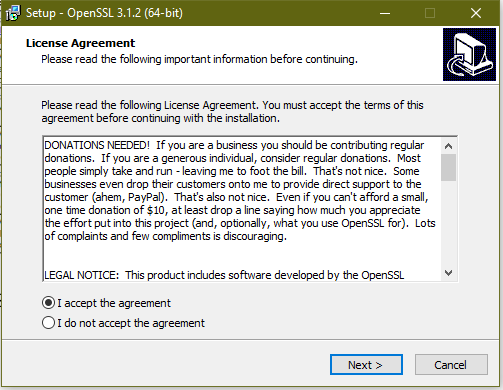
4. Accept the license agreement and click Next.
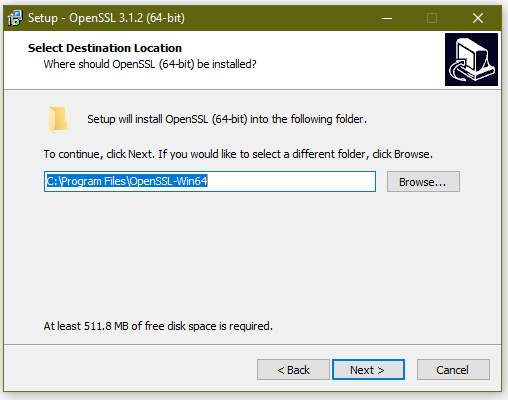
4. Choose the location to install and click Next.
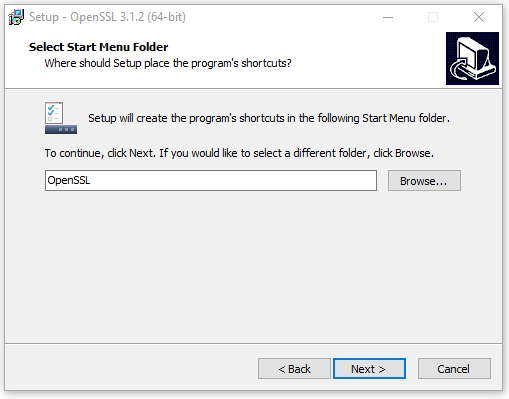
5. Select the Start menu folder and click Next.
6. Select the Windows system directory for the Installation and click Next.
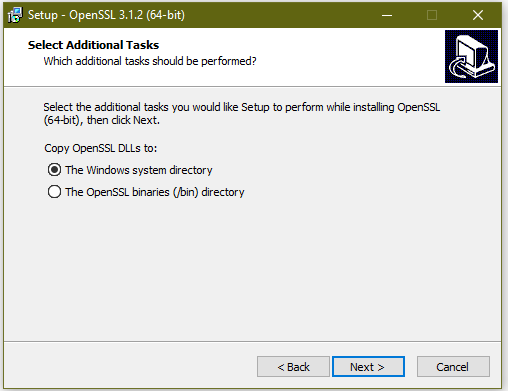
7. Click On install.
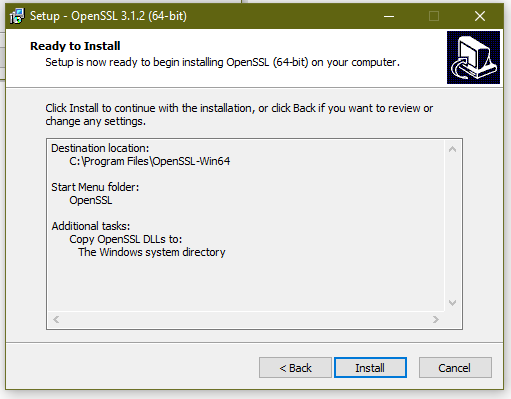
8. Click on Finish to complete the installation.
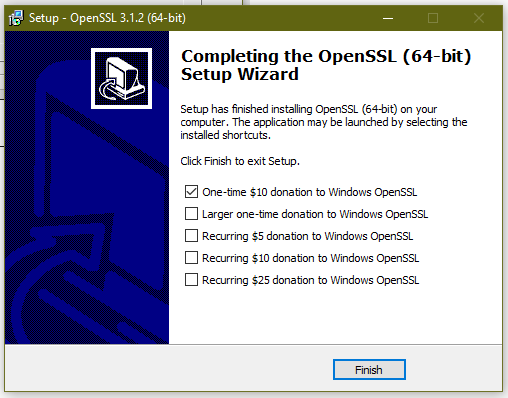
Environment variable
- Run using Windows + r.
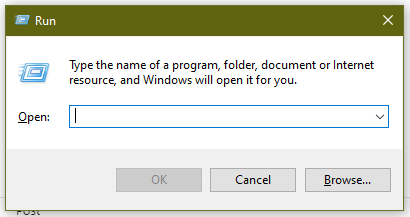
2. Open sysdm.cpl and Click ok.
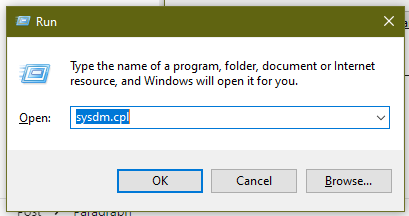
3. Open the system properties.
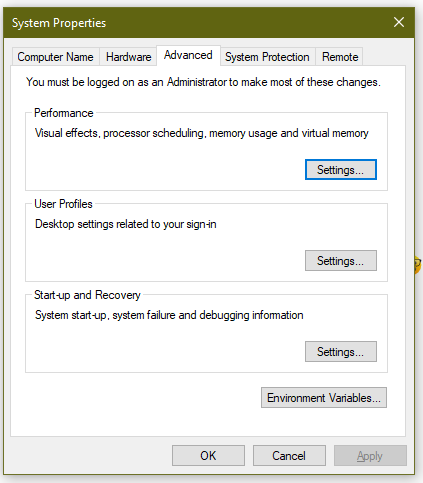
4. Click on the Advanced tab and open the Environment variables.
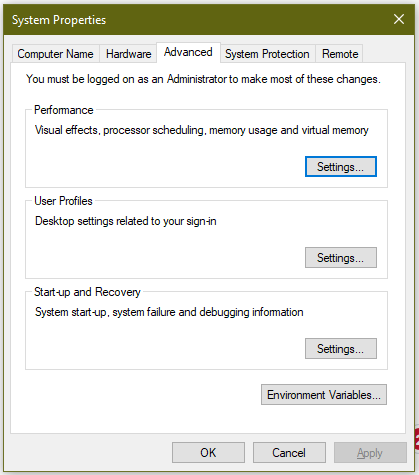
5. Add Variables and path.
OPENSSL_CONF=C:\Program Files\OpenSSL-Win64\bin\openssl.cfg
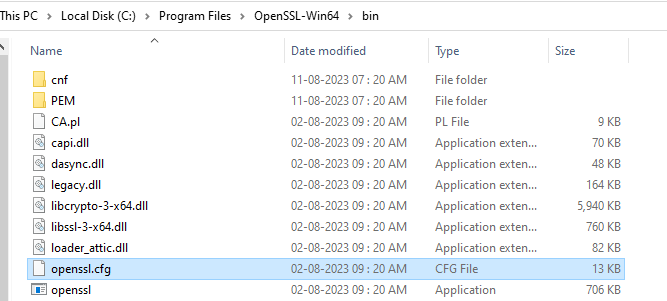
set Path= C:\Program Files\OpenSSL-Win64\bin

5. Click ok to save the variables to the system.
6. Restart the system.
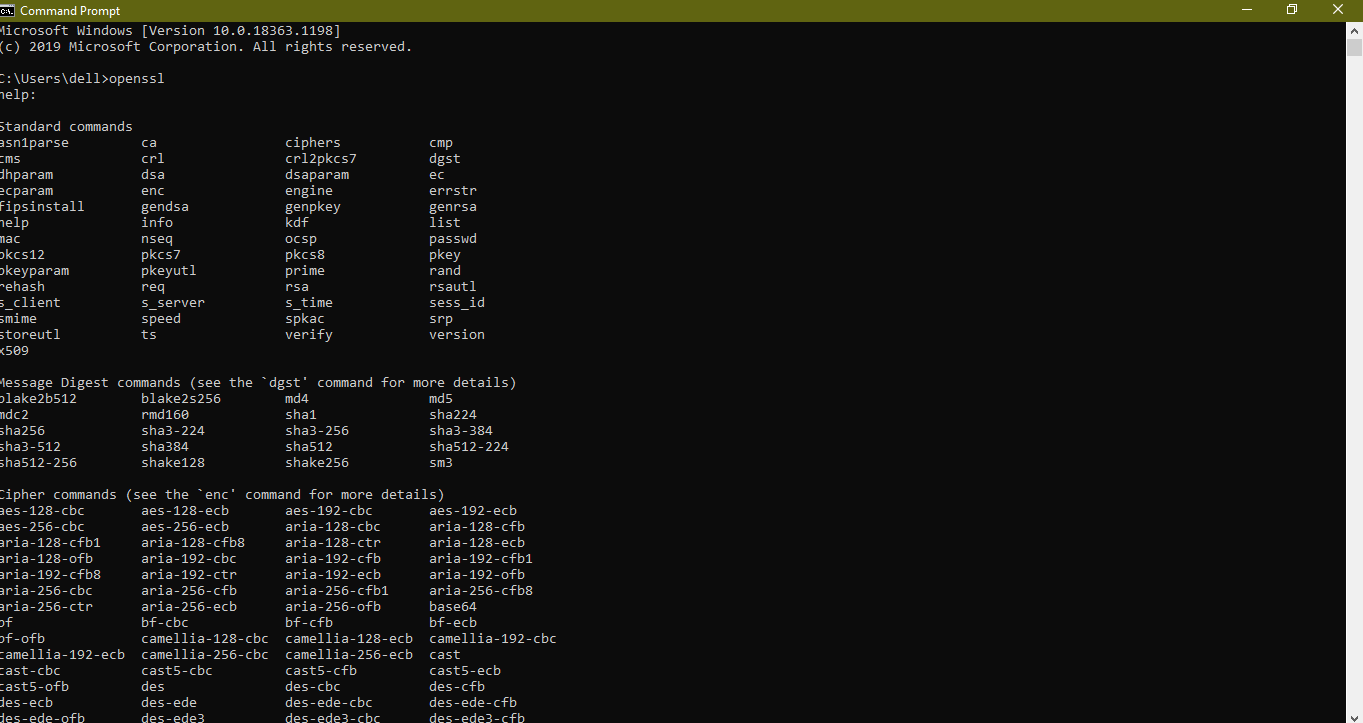
7. Open Command Prompt to test the OpenSSL installation.
8. Run OpensSSl in Command Propt.
Hope you learn something, Thanks for Reading 📖!
Happy Power365ing!

