

Introduction
The wrap feature in Power Apps lets you create native mobile versions of your canvas apps as custom-branded Android and iOS mobile apps. You can distribute such wrapped native mobile apps to the end users through Microsoft Intune, Microsoft App Center, Google Play Apple Business Manager, or other native distribution methods.
In this blog, will learn how to create the manual signing the Andriod APK Code Signing.
Prerequisite
Need to install and configure in the system.
- Install Android Studio
- Install OpenSSL
Generate keys
- Open the comment prompt, and run it as Administrator.
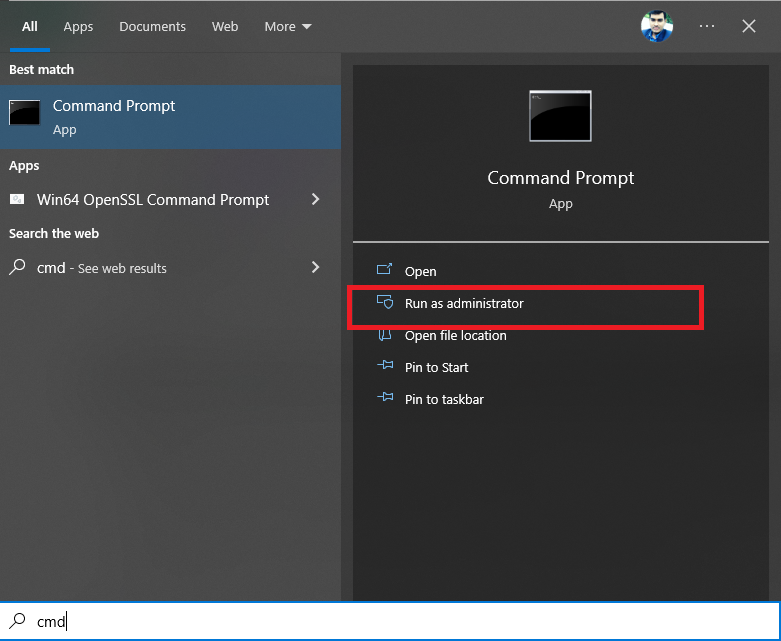
2. Command Prompt open as the system administrator.
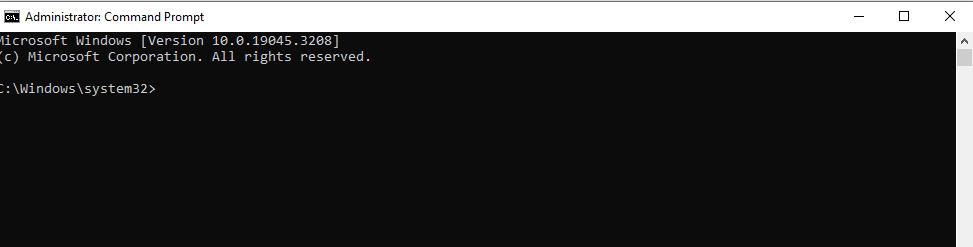
3. Navigate to the Folder Directory where keytool.exe is present in the system.
NOTE: Generate the keys for the Andriod code sign with the help of the keytool.exe
keytool.exe (available after installing Android Studio, from the folder location “c:\Program Files\Android\Android Studio\jbr\bin\keytool.exe”) to create a certificate to sign the application package. Keytool is used to manage a keystore (database) of cryptographic keys, X.509 certificate chains, and trusted certificates.
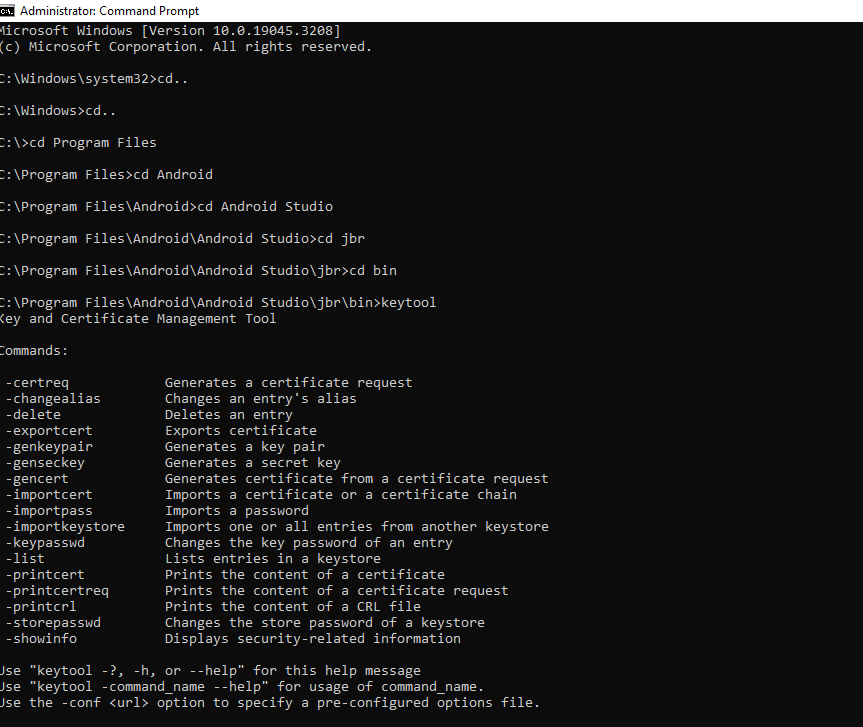
To generate a key, open a command prompt and run the following command:
keytool -genkey -alias SIGNATURE_ALIAS -keyalg RSA -keystore PATH_TO_KEYSTORE -keysize 2048 -validity 10000Parameters:
- genkey – command to generate a key.
- alias – indicates the alias to be used in the future to refer to the keystore entry containing the keys that are generated.
- keyalg – key algorithm name.
- keystore – the name of the keystore you’re using.
- keysize – the size of each key to be generated.
- validity – the validity of the key in a number of days.
Preparing for manual signing, PATH_TO_KEYSTORE should have .jks extension.
keytool -genkey -alias powerappswrap -keyalg RSA -keystore powerappswrap.jks -keysize 2048 -validity 10000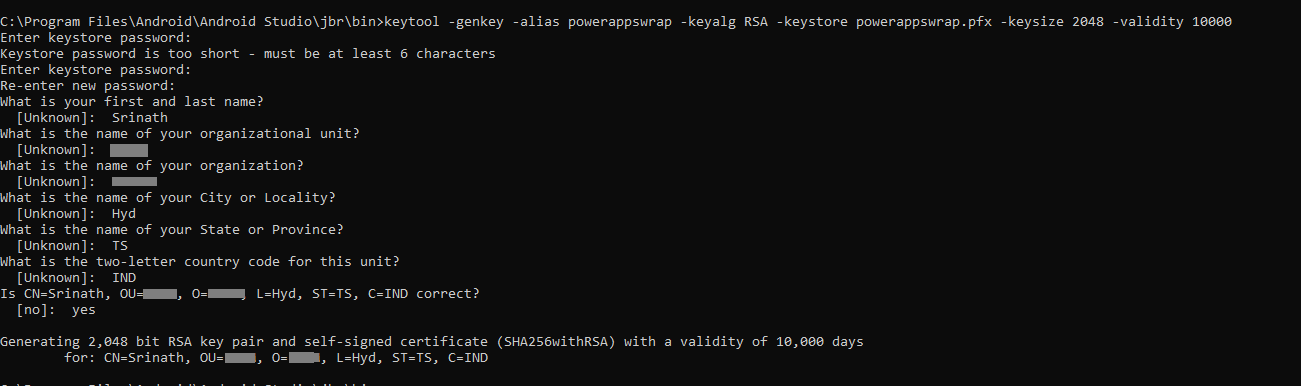
Generate signature hash
Generating the key, the exportcert command is used in keytool to export the Keystore certificate.
The command to generate the signature Hash Code for Andriod.
keytool -exportcert -alias SIGNATURE_ALIAS -keystore PATH_TO_KEYSTORE | openssl sha1 -binary | openssl base64Parameters:
- exportcert – reads from the keystore the certificate associated with the alias and stores it in the cert_file file. When no file is specified, the certificate is output to stdout.
- alias – the alias used while generating keys earlier.
- keystore – the name of the keystore you’re using.
- openssl – generates SHA1 key for Android.
In my case the command for Signature Hash to APK Manual Sign in
keytool -exportcert -alias powerappswrap -keystore powerappswrap.jks | openssl sha1 -binary | openssl base64
APK Code Signing
The apksigner tool tool allows us to sign APKs and ensure that the APK package signatures are verified successfully on all Android platforms supported by the APKs.
- Check the Android SDK path in the Android Studio.
- Select Tool > SDK Manager > Android SDK Location.
- If using iOS, check the apksigner file from the buildTools Version directory.
- Go to SDK directory > build-tools > buildToolsVersion > lib, and check the apksigner.jar file
The command to use the apksigner and sign the package.
apksigner.bat sign --ks PATH_TO_KEYSTORE --ks-key-alias KEY_ALIAS PATH_TO_APKParameters:
- ks – path to the keystore.
- ks-key-alias – key alias path to APK file.
When prompted, enter the password.
in my case, the command is below:
java -jar apksigner.jar sign --ks "C:\Program Files\Android\Android Studio\jbr\bin\powerappswrap.jks" --ks-key-alias powerappswrap c:\Users\MSDyn\Downloads\mswrap.apk
Hope you learn something, Thanks for Reading 📖!
Happy Power365ing!

