

Bookable resources working on a project must have a calendar of working and non-working hours to define their availability. Workings hours for a resource can be defined in two ways:
- Define individual calendar rules for a resource
- Apply an existing calendar template for the resource
In the previous blog, we learned the working and non-working hours of the Bookable Resources.
In this Blog will learn how to Create the Work Hours Calendar Template for the Bookable Resources
Work Hours Calendar Template
- Open the Project Operation Dataverse Environment.
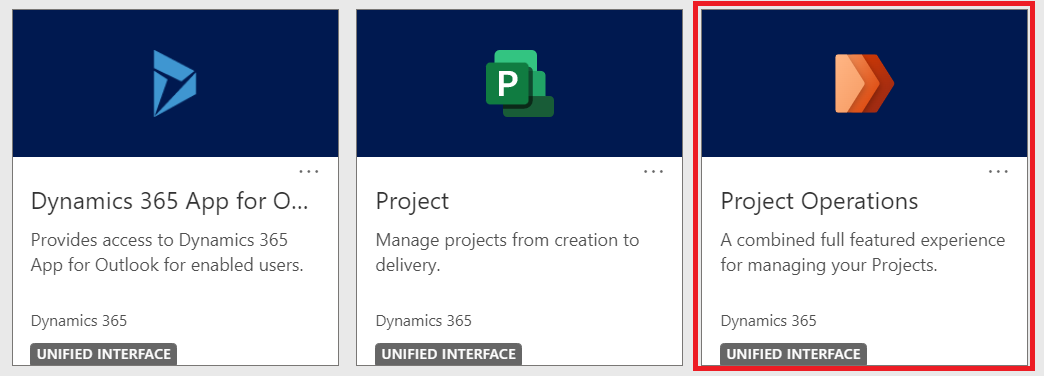
- Open the Project Operations Model Driven App.
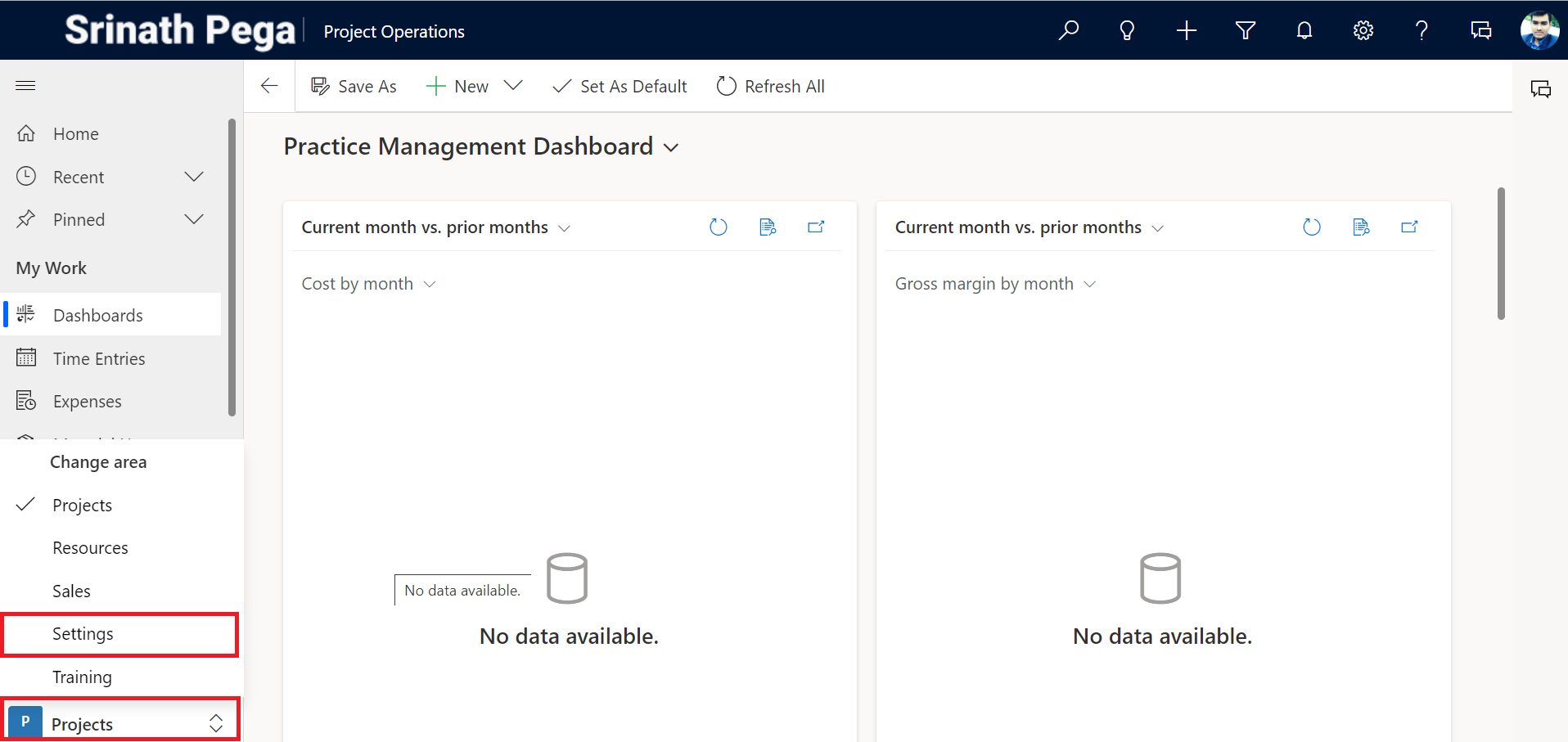
3. Change the site Map area from Projects to settings.
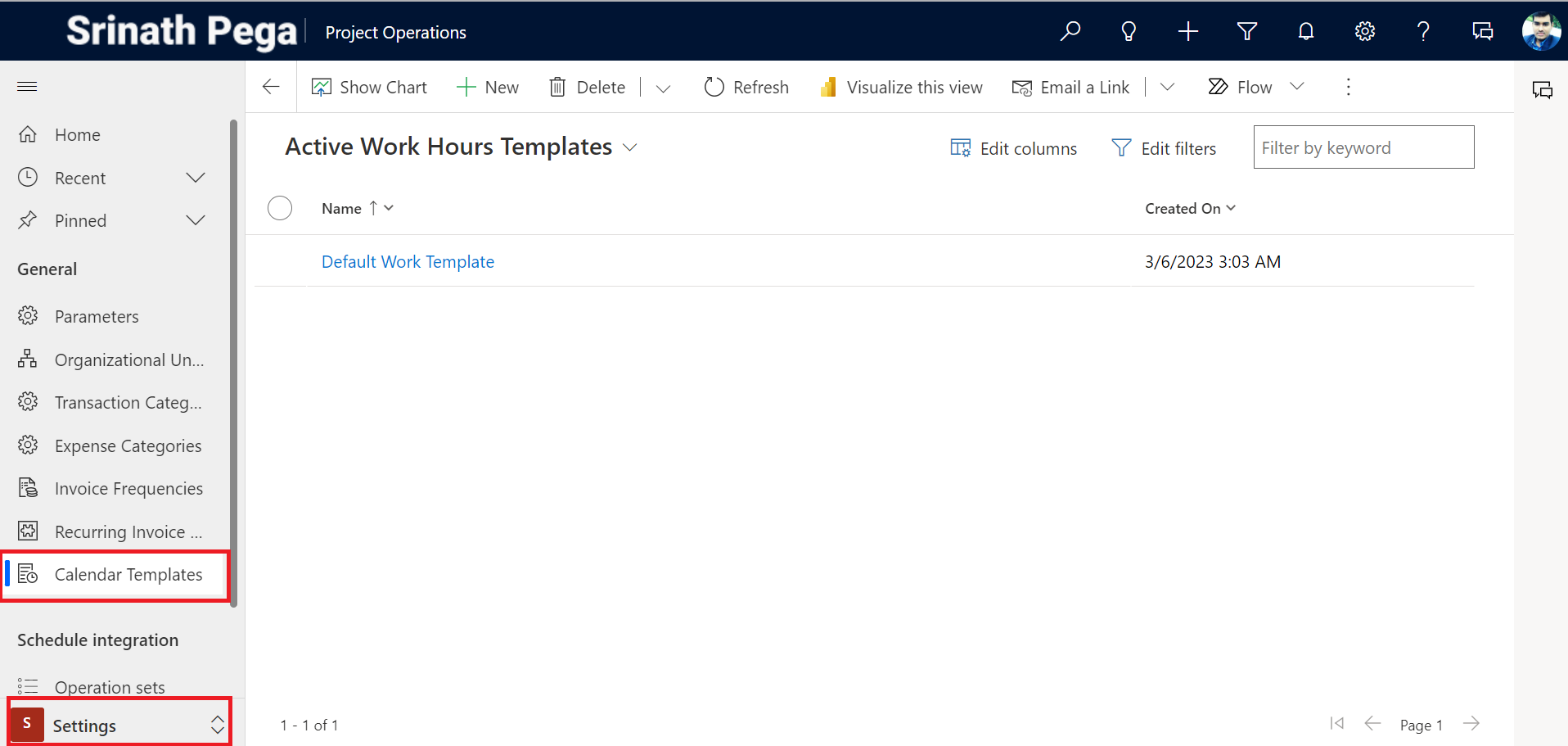
4. Click on the Calendar Templates under the General group.
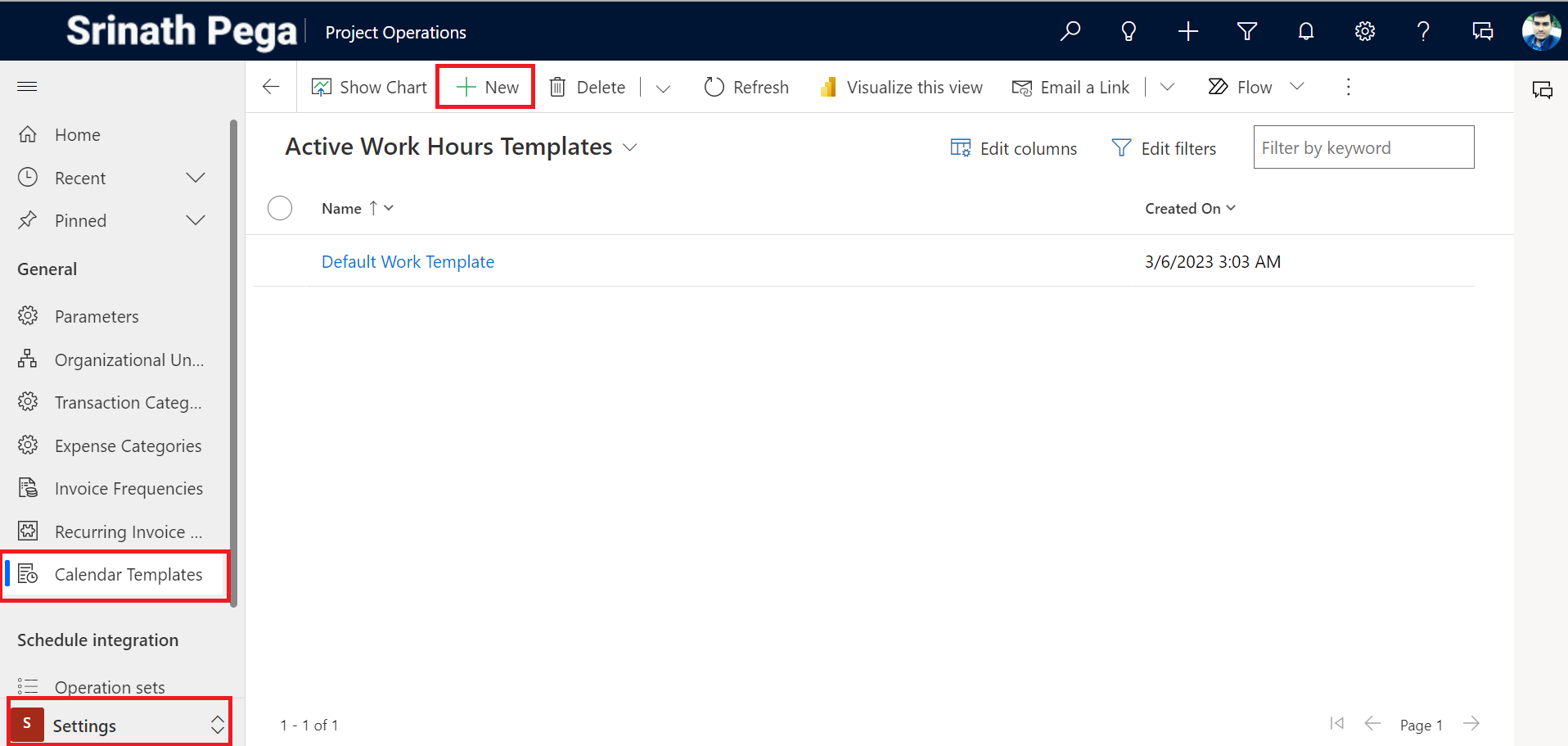
5. Click on new to Create a New Calendar Template.
6. On the New Work template Give the following settings.
Name: 9-5 for PSW Template
Description: Template for user Working 9 AM to 5 PM IST
Template Resources: Project Operations.
NOTE: Teamplte Resource is the Bookable Resource where we set up the working and Non working hours
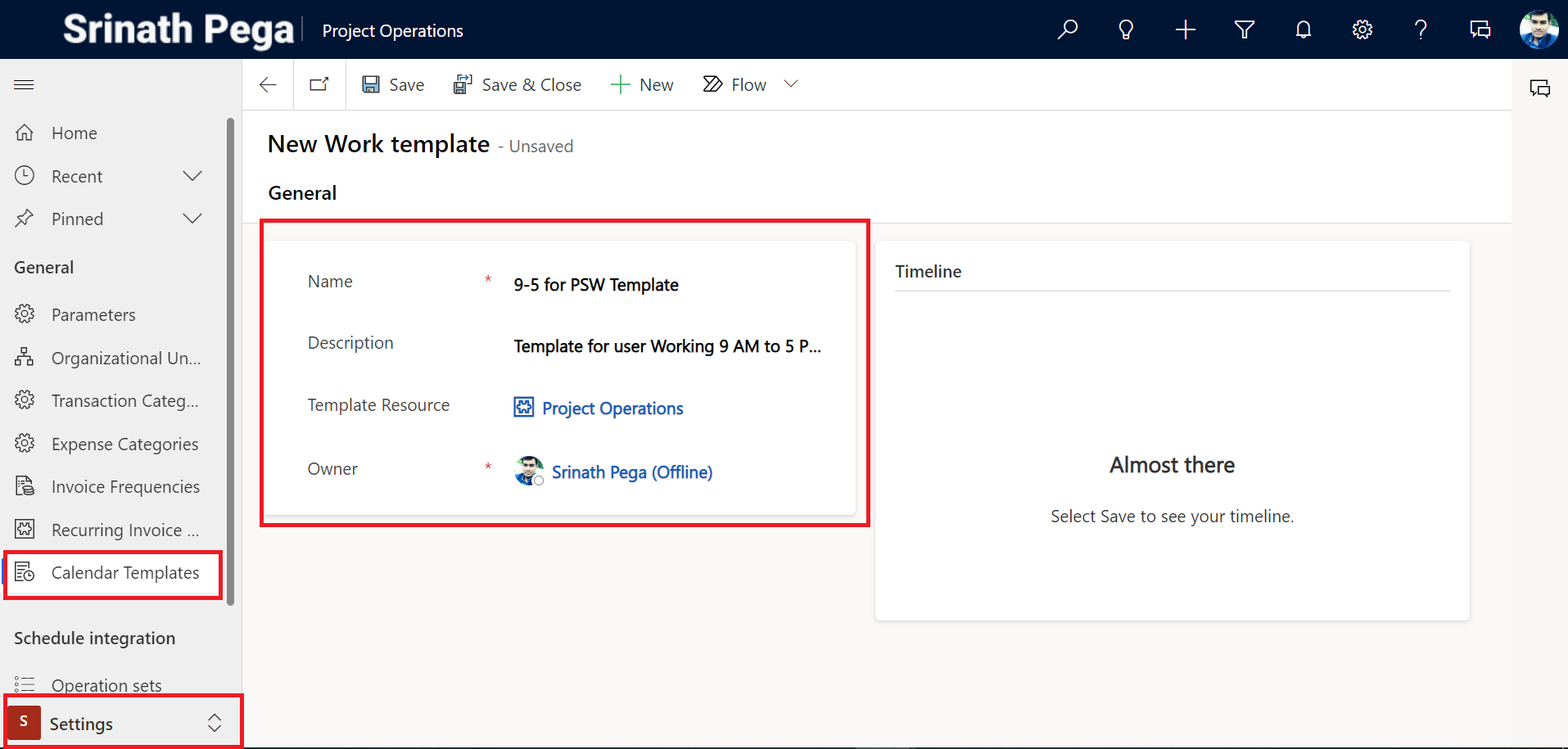
7. Click On Save.
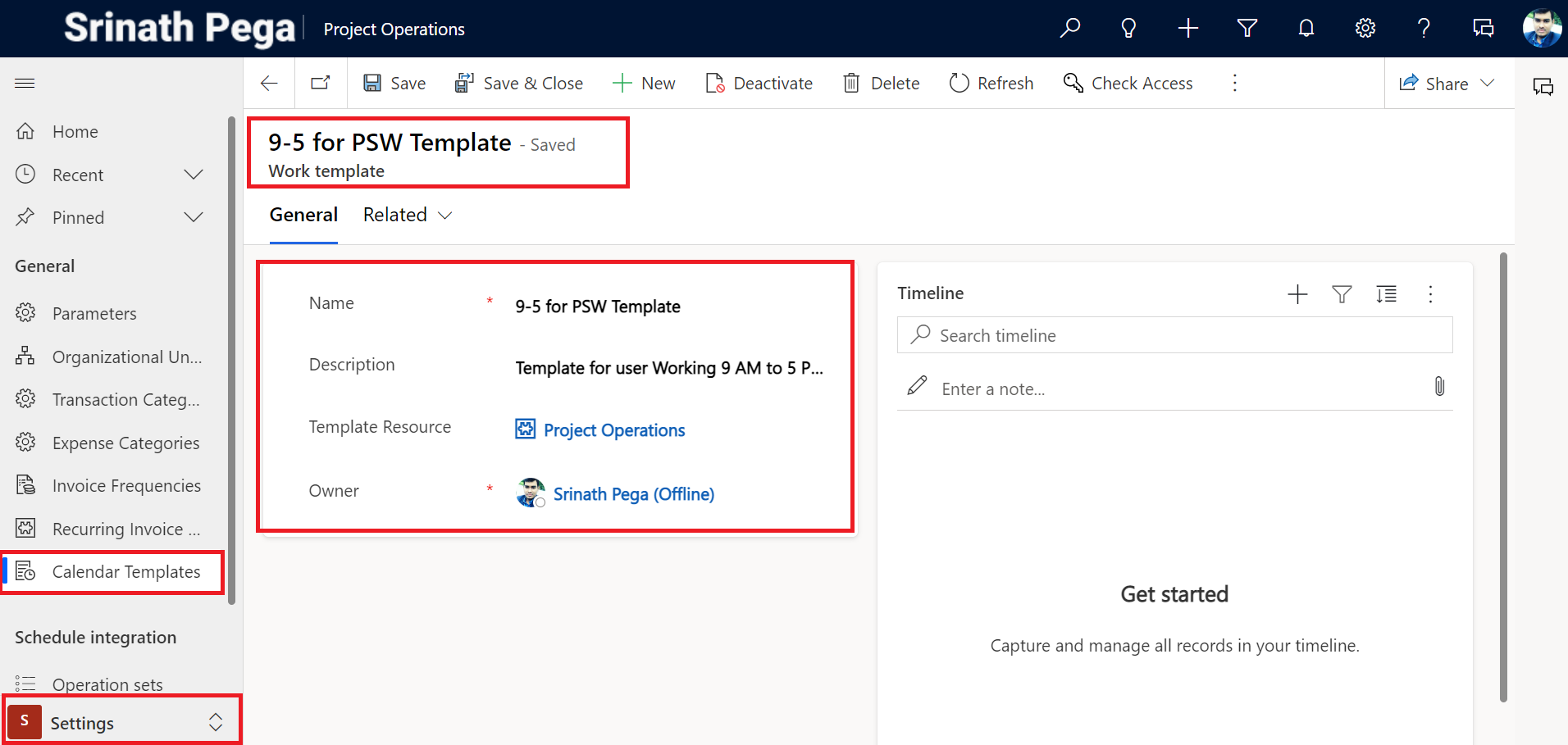
8. Click on Project Parameters.
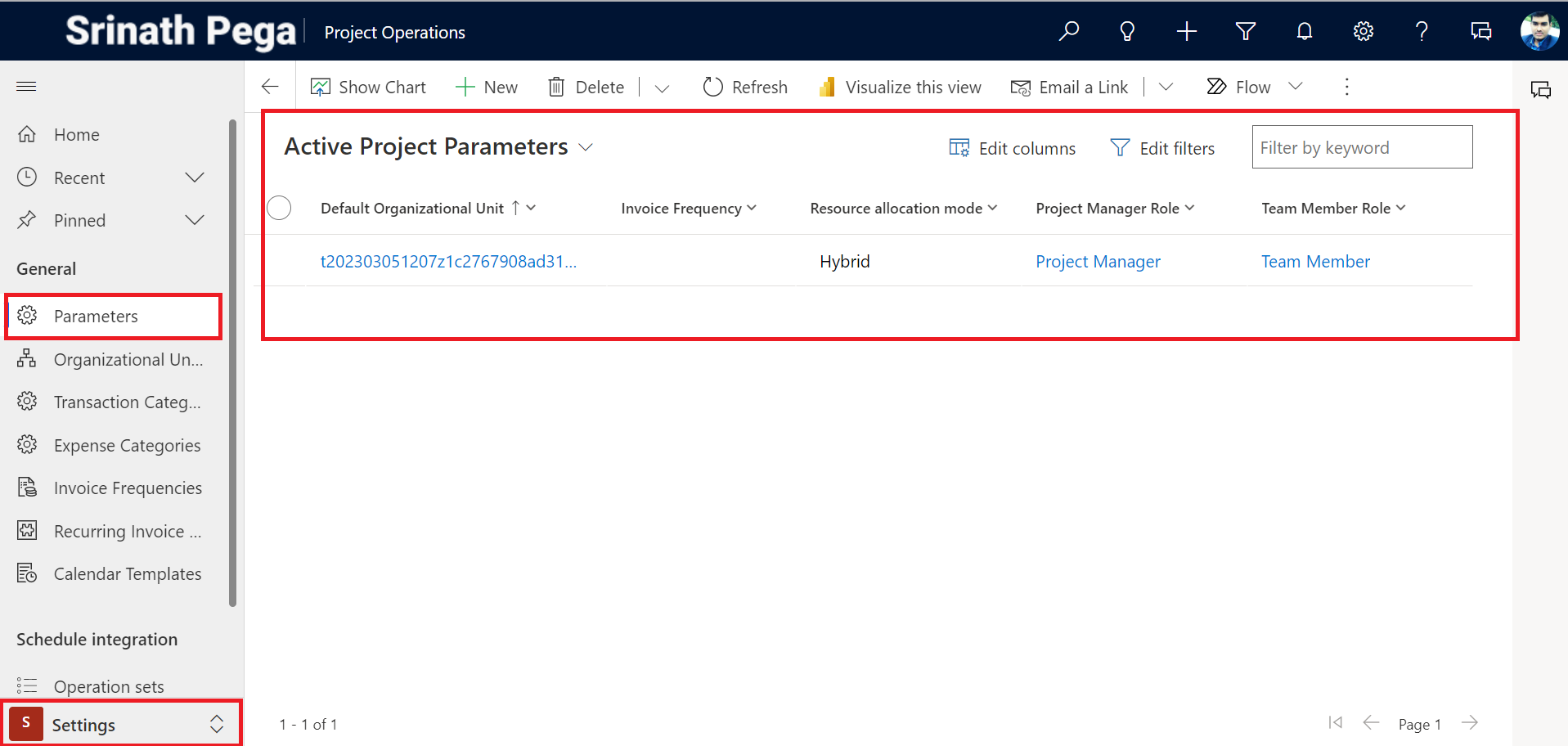
9. Open the Project Parameters and complete the following settings.
Default Organizational Unit: Select Company India
Invoice Frequency: Select 7th and last day.
Work hour template: Select the 9-5 for PSW Template

10. click on Save & close.
Hope you learn something, Thanks for Reading 📖!
Happy Power365ing!


Dear Srinath,
We are trying to set the Projects Operations, but despite this info, we still have issues related with calendar a hours available to shcedule projects. Is there any way to set “ALL th SYSTEM”, for 24 working hours, instead of 8 hours daily?
We really appreciate if you can help us.
Regards.
LikeLike
HI GERMAN HERNANDEZ,
yes, you can set for 24 hours.
Actually its set 24 hours by default in the system.
Thank you.
LikeLike